Introduction
Modern computing often feels like a constant hunt for the “perfect app.” Need to clean your PC? Download something. System running slowly? Install a booster. Having errors? Grab a repair tool. But here’s the reality most users overlook: Microsoft Windows already includes a powerful set of built-in tools designed to handle nearly every common problem—securely, efficiently, and for free.
Think of these tools as hidden power-ups. They’re always there, quietly working in the background, yet most users never fully explore them. Instead, they rely on third-party utilities that often duplicate functionality, consume extra resources, or even introduce security risks.
Why Most Users Ignore Built-In Tools
Despite their power, these tools are widely underused. There are several reasons:
1. Lack of Awareness
Many users simply don’t know these tools exist. Features like Event Viewer or Reliability Monitor sound technical, so they remain untouched.
2. Technical Interfaces
Some tools look intimidating at first glance. Logs, graphs, and system data can feel overwhelming for casual users.
3. Marketing Influence
Third-party apps aggressively promote “one-click fixes,” making built-in solutions seem outdated or insufficient—even when they’re more reliable.
4. Fear of Breaking Something
Users worry that changing system settings might cause damage, so they avoid exploring advanced features.
Hidden Productivity & Troubleshooting Power
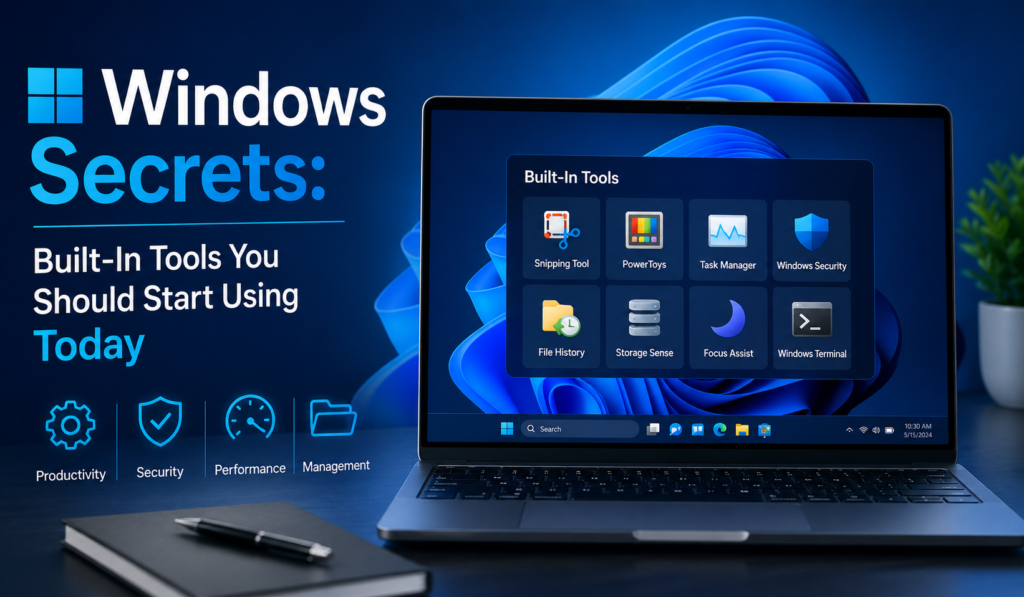
Windows is not just an operating system—it’s a self-contained maintenance ecosystem. It includes:
- Diagnostic tools (Memory Diagnostic, Troubleshooters)
- Monitoring tools (Task Manager, Resource Monitor)
- Recovery tools (System Restore, SFC, DISM)
- Security tools (Windows Security)
- Productivity helpers (Snipping Tool, File History)
Learning even a handful of these tools can:
- Save hours of troubleshooting
- Reduce reliance on third-party apps
- Improve system performance and stability
- Increase your confidence as a user
Who This Guide Is For
This guide is designed for:
Beginners
Who wants to fix common problems safely without risky downloads?
Power Users
Those who want deeper control over performance and system behavior.
IT Helpers & Freelancers
Who needs a reliable, repeatable troubleshooting workflow?.
Task Manager — More Than “End Task.”


The Task Manager is often the first tool people open—but rarely use fully.
What It Really Does
Beyond ending frozen apps, it provides:
- Real-time performance monitoring
- Startup program control
- Process analysis
- Resource tracking
Key Features
Performance Tab
Track CPU, RAM, Disk, Network, and GPU usage.
High usage = bottleneck.
Startup Tab
Disable unnecessary apps to speed up boot time.
Processes Tab
Sort by CPU, Memory, or Disk to instantly find heavy apps.
Advanced Tip
Use “Analyze wait chain” to detect blocked processes.
System Configuration (MSConfig)


The System Configuration tool is essential for diagnosing startup issues.
What It Controls
- Boot modes
- Startup behavior
- System services
Best Use Case
Clean Boot Troubleshooting
- Hide Microsoft services
- Disable third-party services
- Restart and test
If the issue disappears → re-enable services one by one.
Safe Mode Options
- Minimal
- Network
- Alternate shell
Perfect for isolating software or driver conflicts.
Disk Cleanup & Storage Sense


Over time, your PC collects junk files. The Disk Cleanup and Storage Sense fix that.
What You Can Remove
- Temporary files
- Windows update leftovers
- Thumbnails
- Cache files
Storage Sense Automation
Automatically:
- Deletes temporary files
- Clears the Recycle Bin
- Manages storage regularly
Pro Tip
Run “Clean up system files” to remove old Windows installations (huge space saver).
Windows Security (Built-In Antivirus)


The built-in Microsoft Defender Antivirus is more powerful than most users realize.
Key Features
Real-Time Protection
Stops threats instantly.
Scan Modes
Quick, Full, Custom, Offline scans.
Firewall
Controls incoming/outgoing connections.
Ransomware Protection
Blocks unauthorized file changes.
Reality Check
You don’t need a third-party antivirus for most use cases—this already covers it.
Event Viewer – Hidden Error Logs


The Event Viewer records everything your system does.
Why It Matters
Every crash, error, and warning is logged.
What to Look For
- Critical errors
- System failures
- Driver issues
Example
“Kernel-Power” error → unexpected shutdown.
Reliability Monitor – Stability Timeline


The Reliability Monitor shows system health over time.
Why It’s Better Than Logs
- Visual timeline
- Easy to understand
- Shows patterns
Use Case
If an app crashes daily → you’ll see it instantly.
Command Prompt & PowerShell


The Command Prompt and PowerShell are powerful tools.
Must-Know Commands
ipconfig→ network infoflushdns→ fix internet issueschkdsk→ disk errorstasklist→ running processes
Repair Commands
sfc /scannow→ fix system filesDISM /RestoreHealth→ repair Windows image
System File Checker (SFC)
The System File Checker scans and repairs corrupted files.
When to Use
- Apps crashing
- Features not opening
- After updates
Why It’s Safe
It only repairs system files—your personal data remains untouched.
Windows Memory Diagnostic


The Windows Memory Diagnostic checks your RAM.
Symptoms of Bad RAM
- Random crashes
- Freezing
- File corruption
Result
If errors appear, → hardware issue confirmed.
Device Manager – Hardware Control


The Device Manager manages all hardware.
What You Can Do
- Update drivers
- Fix unknown devices
- Roll back drivers
- Enable/disable hardware
Resource Monitor – Deep Diagnostics


The Resource Monitor goes deeper than Task Manager.
Why It’s Powerful
- Shows exact file usage
- Tracks disk activity in real-time
- Reveals hidden processes
System Restore – Safety Net
System Restore lets you roll back your system without touching personal files.
When to Use
- After a bad driver install
- System instability
- Failed updates
Key Benefit
Undo problems without reinstalling Windows.
Snipping Tool – Quick Screenshots


The Snipping Tool simplifies screenshots.
Shortcut
Win + Shift + S
Uses
- Tutorials
- Bug reports
- Documentation
File History – Automatic Backup
The File History protects your files.
What It Does
- Auto-backups
- Keeps versions
- Restores deleted files
Why It Matters
One ransomware attack or accidental delete → saved instantly.
Windows Troubleshooters
Built-in troubleshooters fix common issues automatically.
Types
- Network
- Windows Update
- Hardware
Best Practice
Always try troubleshooters first—they’re safe and quick.
Hidden Advanced Tools
Advanced users can explore:
- Services Manager
- Group Policy Editor
- Performance Monitor
- Steps Recorder
These offer deep system control but require caution.
Best Practices
- Create restore points before changes
- Don’t disable unknown services
- Backup important files
- Use logs before guessing
Conclusion
Windows already gives you everything you need:
- Performance tools → Task Manager, Resource Monitor
- Repair tools → SFC, DISM, System Restore
- Security tools → Microsoft Defender
- Diagnostics → Event Viewer, Reliability Monitor
The biggest mistake isn’t lacking tools—it’s ignoring the ones already installed.
Start using these built-in features, and you’ll notice:
- Faster troubleshooting
- Better performance
- More control over your system
No extra software. No unnecessary risk. Just smarter computing.