
What Is an Operating System? A Beginner-Friendly Guide
OS Insider Hub >> Operating System>> What Is an Operating System? A Beginner-Friendly Guide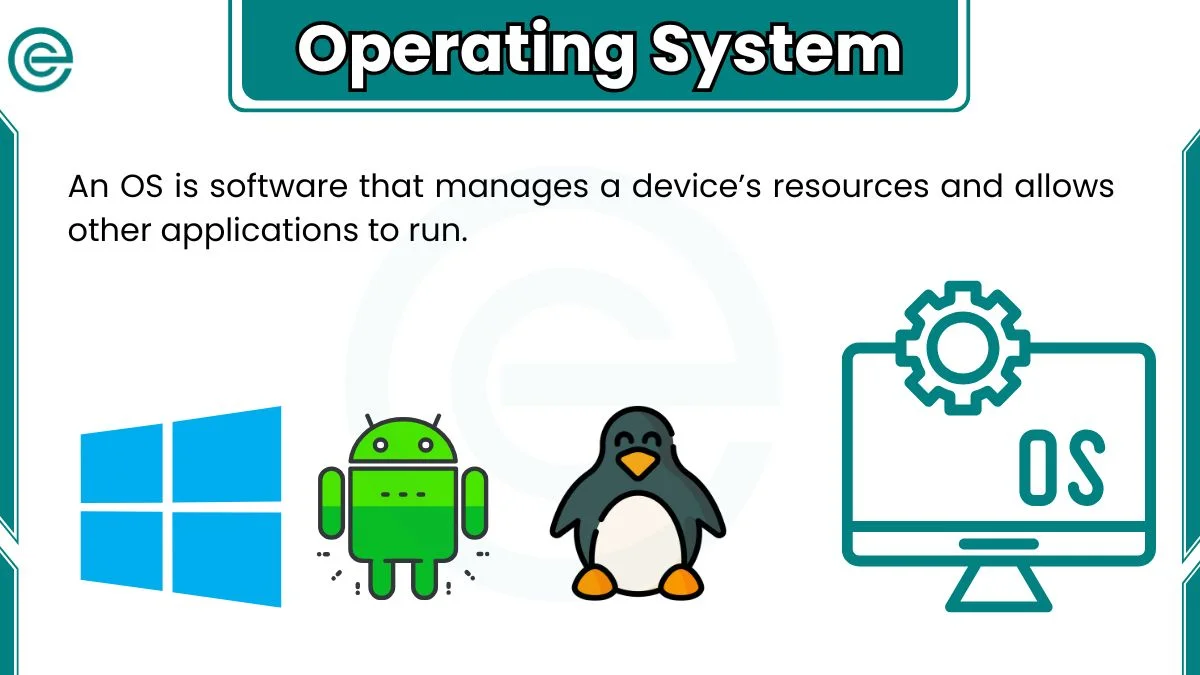
What Is an Operating System? A Beginner-Friendly Guide
Introduction: Why Operating Systems Matter
Think of an operating system (OS) as the manager of your computer or phone. It sits between you and the hardware, making sure apps run, files are saved, and devices like keyboards and printers talk to the machine. Without an OS, you’d have to tell the processor, memory, and storage exactly what to do for every tiny task — which would be impossibly hard.
Why this matters:
- It makes computers usable for people (provides the user interface).
- It coordinates hardware, so multiple apps can run without chaos.
- It keeps your data safe and helps the system recover from errors.
In short, the OS does the heavy lifting so you can focus on work, play, or browsing.
What Is an Operating System? (Simple Definition)
An operating system is system software that manages hardware resources and provides common services for computer programs. It’s the fundamental software layer that:
- boots the machine,
- runs applications,
- manages files and memory,
- and handles input/output (I/O) with devices.
Examples: Windows, macOS, Linux, Android, and iOS — all are operating systems tailored for different devices or uses.
What Does an Operating System Do?
At a high level, an OS performs three broad jobs:
- Resource management — it allocates CPU time, memory, and storage to programs that need them.
- Abstraction — it provides a simpler interface (APIs, file systems, GUI) so programs don’t need to control hardware directly.
- Protection and security — it enforces user permissions, isolates apps from each other, and applies updates to fix vulnerabilities.
Practical everyday examples:
- When you open a web browser, the OS allocates memory and CPU cycles to it.
- When you save a file, the OS decides where on the disk it goes and remembers its name and permissions.
- When a USB drive is connected, the OS recognizes it and lets you browse files.
Main Functions of an Operating System
The OS can be split into core functions — each one essential for a working computer:
- Process Management — creating, scheduling, and terminating programs (processes).
- Memory Management — allocating and freeing RAM; providing virtual memory.
- File Management — organizing files, folders, permissions, and storage access.
- Device Management — controlling hardware through drivers and handling I/O.
- User Interface — command-line or graphical environment for user interaction.
- Security & Access Control — authentication, user accounts, and permission checks.
- Networking — managing network connections, sockets, and protocols.
These functions work together: e.g., the scheduler (process management) relies on memory management to ensure a process has enough RAM.
Process Management
A process is a running instance of a program. Process management makes sure multiple processes can run smoothly on the same machine.
Key concepts:
- Creation & Termination — launching apps creates processes; closing them terminates processes.
- Scheduling — the OS decides which process gets CPU time and for how long (time-slicing).
- Context switching — when the OS pauses one process and resumes another, it saves and restores their state.
- Inter-process communication (IPC) — processes exchange data safely (pipes, sockets, shared memory).
- Multitasking & Priorities — some processes get higher priority (e.g., system processes) to keep the system responsive.
Analogy: think of the CPU as a single cashier and processes as customers — the OS is the manager deciding the queue order, service time, and who gets priority.
Memory Management
Memory management controls how RAM and virtual memory are used.
Core ideas:
- Allocation & Deallocation — giving programs the RAM they request, then freeing it when they’re done.
- Virtual memory — the OS can make programs think they have a large continuous memory block by using disk space (swap/page file) when physical RAM runs out.
- Paging & Segmentation — techniques to map virtual addresses to physical memory (helps security and efficiency).
- Memory protection — preventing a process from reading/writing another process’s memory (avoids crashes and security breaches).
- Garbage collection support — while languages handle GC, the OS provides the memory mechanisms they use.
Tip for users: if your system uses a lot of swap, it’s a signal you might need more RAM or fewer background apps.
File Management
File management is how the OS organizes, stores, and retrieves data on storage devices.
What it handles:
- File systems — the structure used to store data (NTFS, ext4, APFS, FAT32).
- Directories & paths — hierarchical organization (folders and subfolders).
- Permissions — who can read, write, or execute a file (user/group/others).
- Metadata — file attributes like size, timestamps, and ownership.
- File operations — create, delete, move, copy, rename, read, write.
- Mounting & devices — attaching storage (USB drives, network shares) to be accessed as part of the filesystem.
Analogy: file management is like a library system — the OS is the librarian who catalogs books, checks them out, and keeps records.
Device Management
Device management connects the OS to hardware — keyboards, displays, storage, printers, network cards, etc.
Main responsibilities:
- Device drivers — small programs (often provided by hardware vendors) that translate generic OS calls into hardware-specific commands.
- I/O scheduling — ordering read/write operations so storage and other devices operate efficiently.
- Interrupt handling — devices send interrupts (signals) to request attention; the OS handles these quickly.
- Plug and play — detecting and configuring devices automatically when connected.
- Power management — turning devices on/off or suspending them to save energy.
Example: when you print, your application sends the data to the OS, the OS passes it to the printer driver, and the driver talks to the printer hardware.
Types of Operating Systems
Operating systems come in different shapes depending on the device and purpose. Broadly, they’re classified by how they interact with hardware, how many users/processes they support, and the environment they run in. The most common types you’ll see on the web are desktop, mobile, server, and embedded OSes — each optimized for different tasks, resource constraints, and user needs.
Desktop Operating Systems
Desktop OSes are designed for general-purpose computers used by a single user at a time: laptops and desktops. They provide rich graphical user interfaces (GUIs), full support for peripherals (printers, webcams, external drives), and a large ecosystem of applications (productivity suites, browsers, games).
Key characteristics:
- Strong GUI and user-friendly experience.
- Broad hardware and application compatibility.
- Focus on multimedia, productivity, and interactive tasks.
- Examples: Windows, macOS, many desktop Linux distributions.
When to use: everyday computing, gaming, content creation, software development, and personal productivity.
Mobile Operating Systems
Mobile OSes power smartphones, tablets, and some wearable devices. They’re built for touch input, limited power budgets, and always-on network connectivity. Mobile OSes tightly control app distribution and permissions to balance performance with battery life and security.
Key characteristics:
- Touch-first interfaces and gesture support.
- Aggressive power and memory management.
- App ecosystems through official app stores.
- Examples: Android and iOS.
When to use: on-the-go communication, mobile apps, lightweight browsing, and sensor-driven experiences (GPS, accelerometer).
Server Operating Systems
Server OSes are optimized to run services for many users or devices at once: websites, databases, application servers, file shares, and cloud workloads. They prioritize stability, security, scalability, and remote management over flashy GUIs.
Key characteristics:
- Long uptimes and strong security tooling.
- Efficient multi-user and multi-process handling.
- Tools for virtualization, clustering, and automation.
- Examples: server editions of Linux (Ubuntu Server, CentOS/AlmaLinux), Windows Server.
When to use: hosting websites, databases, enterprise apps, cloud infrastructure, and network services.
Embedded Operating Systems
Embedded OSes run inside devices where computing is just one part of the product: routers, smart TVs, IoT sensors, industrial controllers, and appliances. They often have tight memory/CPU limits and sometimes no user-visible interface.
Key characteristics:
- Small footprint, often real-time capabilities.
- Highly specialized drivers and predictable timing.
- Minimal or no GUI; may run a tiny web server or dedicated UI.
- Examples: RTOSes (FreeRTOS, VxWorks), stripped-down Linux builds.
When to use: mission-critical controllers, appliances, sensors, and devices requiring real-time response.
Popular Operating Systems Explained
Windows
Windows is a widely used desktop OS focused on compatibility and ease of use. It supports an enormous range of hardware and software, making it popular for home users, gamers, and businesses.
Strengths:
- Huge app library and device driver support.
- Familiar GUI and broad hardware compatibility.
- Strong backward compatibility for older software.
Typical use-cases: gaming, office work, creative apps, legacy enterprise software.
macOS
macOS is Apple’s desktop OS designed for tight hardware–software integration on Macs. It emphasizes user experience, stability, and a polished GUI, and integrates closely with Apple’s ecosystem (iPhone, iPad, iCloud).
Strengths:
- Smooth, consistent user experience and strong multimedia tools.
- Excellent hardware/software optimization on Apple machines.
- Good for creative workflows (video, audio, design).
Typical use-cases: creative production, software development (esp. for Apple platforms), personal productivity.
Linux
Linux refers to a family of open-source operating systems built around the Linux kernel. It’s extremely flexible — from full-featured desktop distros to tiny server images — and is a top choice for servers, developers, and power users.
Strengths:
- Highly customizable and open-source.
- Strong server & cloud presence; great for developers.
- Numerous distributions for different needs (Ubuntu, Fedora, Debian, Arch).
Typical use-cases: servers, programming, security appliances, and privacy-conscious desktop setups.
Android
Android is the dominant mobile OS worldwide, built on a modified Linux kernel and designed for touch devices. It offers a large app ecosystem and a wide device variety across price ranges.
Strengths:
- Massive app ecosystem and device diversity.
- Deep customization for OEMs and users.
- Strong support for multimedia and connectivity features.
Typical use-cases: smartphones, tablets, smart TVs, and many IoT devices.
iOS
iOS is Apple’s mobile OS for iPhone (and iPadOS for iPad). It prioritizes performance, privacy, and a controlled app ecosystem to ensure consistent app quality and security.
Strengths:
- Tight hardware–software integration and predictable performance.
- Strong privacy controls and a curated App Store.
- Smooth UX and reliable app behavior.
Typical use-cases: mainstream mobile users who value privacy, performance, and app quality.
How an Operating System Works Behind the Scenes
Under the colorful icons and windows, an OS is a layered set of software components that coordinate hardware and software. Here’s a simplified behind-the-scenes flow:
- Bootloader & Kernel Start — When the device powers on, the bootloader initializes hardware and loads the kernel (the OS core). The kernel then initializes low-level drivers and core services.
- Kernel Responsibilities — The kernel manages CPU scheduling, memory mapping, device drivers, interrupts, and system calls. It acts as the trusted intermediary between applications and hardware.
- User Space & System Services — Above the kernel sits user space: libraries, system daemons/services (e.g., networking, audio), and applications. These interact with the kernel via system calls (standardized requests for services like file I/O).
- Device Drivers & Interrupts — Drivers translate generic OS requests into hardware-specific commands. Hardware uses interrupts to signal the OS when attention is needed (a keystroke, an incoming network packet).
- Scheduling & Multitasking — The scheduler decides which process runs on the CPU and for how long, giving the illusion that many programs run simultaneously.
- Memory & File Management — The OS maps virtual memory to physical RAM and handles paging to disk. The file system organizes stored data into files and directories with metadata and permissions.
- Security & Isolation — The OS enforces access controls, user accounts, and process isolation so apps can’t easily interfere or read private data from each other.
- Services & APIs — Higher-level APIs and services (GUI toolkits, networking stacks) make it simpler for app developers to build software without touching hardware details.
Analogy: the kernel is like the building’s utilities manager (power, elevators, plumbing), drivers are the technicians for each appliance, and user-space apps are the tenants using services through standard requests.
User Interface: GUI vs Command Line
An operating system allows users to interact with a computer through different types of interfaces. The two most common are the Graphical User Interface (GUI) and the Command Line Interface (CLI).
A GUI uses visual elements such as windows, icons, buttons, and menus. Most people use GUIs because they are easy to understand and require little technical knowledge. Actions like clicking icons, dragging files, and opening apps are all handled visually, making GUIs ideal for beginners and everyday users.
A Command Line Interface, on the other hand, relies on text commands. Users type instructions and receive text-based output. While it looks less friendly, the command line is extremely powerful. Developers, system administrators, and advanced users prefer it because tasks can be completed faster and automated through scripts.
In modern operating systems, both interfaces often coexist. Users can enjoy the simplicity of a GUI while still accessing the command line when advanced control is needed.
Why You Need an Operating System
An operating system is essential because it makes a computer usable. Without an OS, your hardware would not know how to work together or respond to user input.
The OS acts as a bridge between the user and the hardware. It allows you to install and run applications, save files, connect to the internet, and use devices like printers or webcams. It also manages system resources such as CPU, memory, and storage, ensuring that programs run smoothly without interfering with each other.
In simple terms, the operating system turns raw hardware into a functional and user-friendly machine.
Operating System Examples in Daily Life
Operating systems are not limited to computers and phones—they are part of everyday life.
On a laptop or desktop, operating systems like Windows, macOS, or Linux run web browsers, office software, and games.
On smartphones, Android and iOS manage apps, calls, messages, cameras, and sensors.
Smart TVs use specialized operating systems to stream videos and display menus.
Wi-Fi routers run lightweight operating systems to manage network traffic and security.
Cars, ATMs, smartwatches, and home appliances all rely on embedded operating systems to function properly.
Even when you don’t see it, an operating system is working behind the scenes.
Advantages of Using an Operating System
Using an operating system offers many important advantages:
- Makes computers easy to use through user-friendly interfaces
- Allows multiple applications to run at the same time
- Manages hardware resources efficiently
- Provides security through user accounts and permissions
- Supports software updates and system improvements
- Ensures stability by isolating applications from each other
- Enables compatibility with a wide range of software and devices
These advantages make operating systems essential for both personal and professional computing.
Common Problems Caused by Operating Systems
Although operating systems are powerful, they can sometimes cause issues:
- Slow performance after updates
- Software or driver compatibility problems
- System crashes or freezes
- Failed or stuck updates
- Security vulnerabilities exist if not updated
- High resource usage by background processes
- Hardware is not working due to driver issues
Most of these problems can be solved by updating the system, installing the correct drivers, freeing system resources, or reinstalling the OS when necessary.
How to Choose the Right Operating System
Choosing the right operating system depends on your needs and usage.
If you want maximum software compatibility and gaming, Windows is usually the best choice.
If you prefer a smooth, stable experience with Apple devices, macOS is ideal.
If you want full control, customization, and open-source freedom, Linux is a great option.
For mobile devices, Android offers flexibility while iOS focuses on performance and security.
Consider factors such as ease of use, hardware compatibility, security, performance, available applications, and your technical skill level before deciding.
Common Problems Caused by Operating Systems
Although operating systems are designed to make devices work smoothly, they can sometimes create problems for users.
One common issue is slow performance, especially after installing updates or running too many background applications. Compatibility problems can also occur when older software or hardware does not work properly with newer OS versions. Users may experience system crashes, freezing, or blue screen errors due to corrupted system files or faulty drivers.
Another frequent problem is failed or stuck updates, which can prevent the system from starting correctly. Security risks may appear if the operating system is outdated or not properly configured. Driver-related issues can cause hardware like printers, sound cards, or Wi-Fi adapters to stop working.
Regular updates, proper backups, and installing trusted software help reduce these problems significantly.
How to Choose the Right Operating System
Choosing the right operating system depends on how you plan to use your device.
If you want broad software support, gaming, and flexibility, Windows is a popular choice.
If you prefer a stable, polished experience and use Apple devices, macOS is ideal.
If you value open-source software, customization, and privacy, Linux is an excellent option.
For smartphones, Android is best for customization and device variety, while iOS focuses on performance, security, and ease of use.
Before choosing, consider factors like ease of use, hardware compatibility, security features, performance needs, and the applications you rely on daily. The best operating system is one that matches your skills and goals.
Operating System Updates and Why They’re Important
Operating system updates are essential for keeping your device secure and reliable. These updates often include security patches that fix vulnerabilities hackers could exploit. They also improve system stability, fix bugs, and sometimes introduce new features.
Skipping updates can leave your system exposed to malware and performance issues. Updates also ensure compatibility with new applications and hardware. While some updates may take time or require a restart, they help extend the life and safety of your device.
Keeping your operating system up to date is one of the simplest and most effective ways to protect your data and improve performance.
Future of Operating Systems
The future of operating systems is moving toward smarter, faster, and more connected systems. Artificial intelligence is being integrated to improve performance, security, and user experience. Cloud-based features are becoming more common, allowing seamless syncing across devices.
Operating systems are also becoming more energy-efficient and optimized for new hardware like ARM processors. Privacy and security will play a larger role, with better permission controls and built-in protection. Lightweight operating systems for IoT and smart devices will continue to grow as technology expands.
In the coming years, operating systems will focus more on automation, personalization, and cross-device integration.
Frequently Asked Questions (FAQs)
What is the main purpose of an operating system?
The main purpose of an operating system is to manage hardware resources and allow users to run applications easily and safely.
Can a computer work without an operating system?
Technically, yes, but it would be extremely difficult to use. An OS is required for normal tasks like running programs and saving files.
Which operating system is best for beginners?
Windows and macOS are generally best for beginners due to their user-friendly interfaces.
Is Linux safe to use?
Yes, Linux is very secure and widely used on servers and personal computers.
Why do operating systems need updates?
Updates fix security issues, improve performance, and add new features.
Final Thoughts
An operating system is the foundation of every modern device. It controls hardware, manages software, and provides the interface that allows users to interact with technology. From desktops and smartphones to cars and smart homes, operating systems are everywhere.
Understanding how operating systems work helps you make better decisions, troubleshoot problems, and choose the right platform for your needs. Whether you’re a beginner or a tech enthusiast, knowing the basics of operating systems is an essential step in today’s digital world.
Related Post
Insider Builds vs Stable Builds: Real Differences
Introduction Operating systems constantly evolve with new features, security improvements, and performance enhancements. To deliver…