Introduction to Windows 11
Windows 11 is Microsoft’s modern operating system designed to offer a cleaner interface, better performance, and stronger security compared to previous versions of Windows. It represents a major step forward in how users interact with their computers, focusing on simplicity, productivity, and a more visually appealing design. From students and professionals to gamers and businesses, Windows 11 aims to deliver a smoother and more efficient computing experience.
As technology evolves, user expectations have changed as well. People now want faster systems, better multitasking, enhanced security, and seamless integration with cloud services. Windows 11 addresses these needs by introducing new features, optimizing system performance, and enforcing higher hardware standards to ensure stability and safety.
What Is Windows 11?
Windows 11 is the latest desktop operating system developed by Microsoft, officially succeeding Windows 10. It is built to support modern hardware and software demands while providing an updated user experience. Unlike previous versions, Windows 11 places a strong emphasis on design consistency, ease of use, and advanced security.
The operating system introduces a redesigned Start Menu, centered taskbar icons, improved window management tools, and better support for touch, pen, and voice input. Windows 11 is not just a visual upgrade; it also includes under-the-hood improvements that enhance speed, battery efficiency, and system responsiveness.
Windows 11 is designed for both personal and professional use. Whether you are browsing the web, creating content, attending online meetings, or playing games, the OS is optimized to handle everyday tasks more efficiently while supporting the latest technologies.
Windows 11 Release Overview
Microsoft officially announced Windows 11 in June 2021, drawing significant attention for its redesigned interface and new hardware requirements. The public release began in October 2021, with the upgrade being offered gradually to eligible Windows 10 devices through Windows Update.
The rollout strategy focused on stability, meaning not all users received the update at the same time. Microsoft prioritized newer and compatible devices to reduce potential issues. Over time, Windows 11 became more widely available as updates improved compatibility, performance, and bug fixes.
Since its release, Windows 11 has continued to receive regular updates that introduce new features, enhance security, and refine the overall user experience. These updates ensure that the operating system stays relevant and reliable in a rapidly changing tech environment.
System Requirements for Windows 11
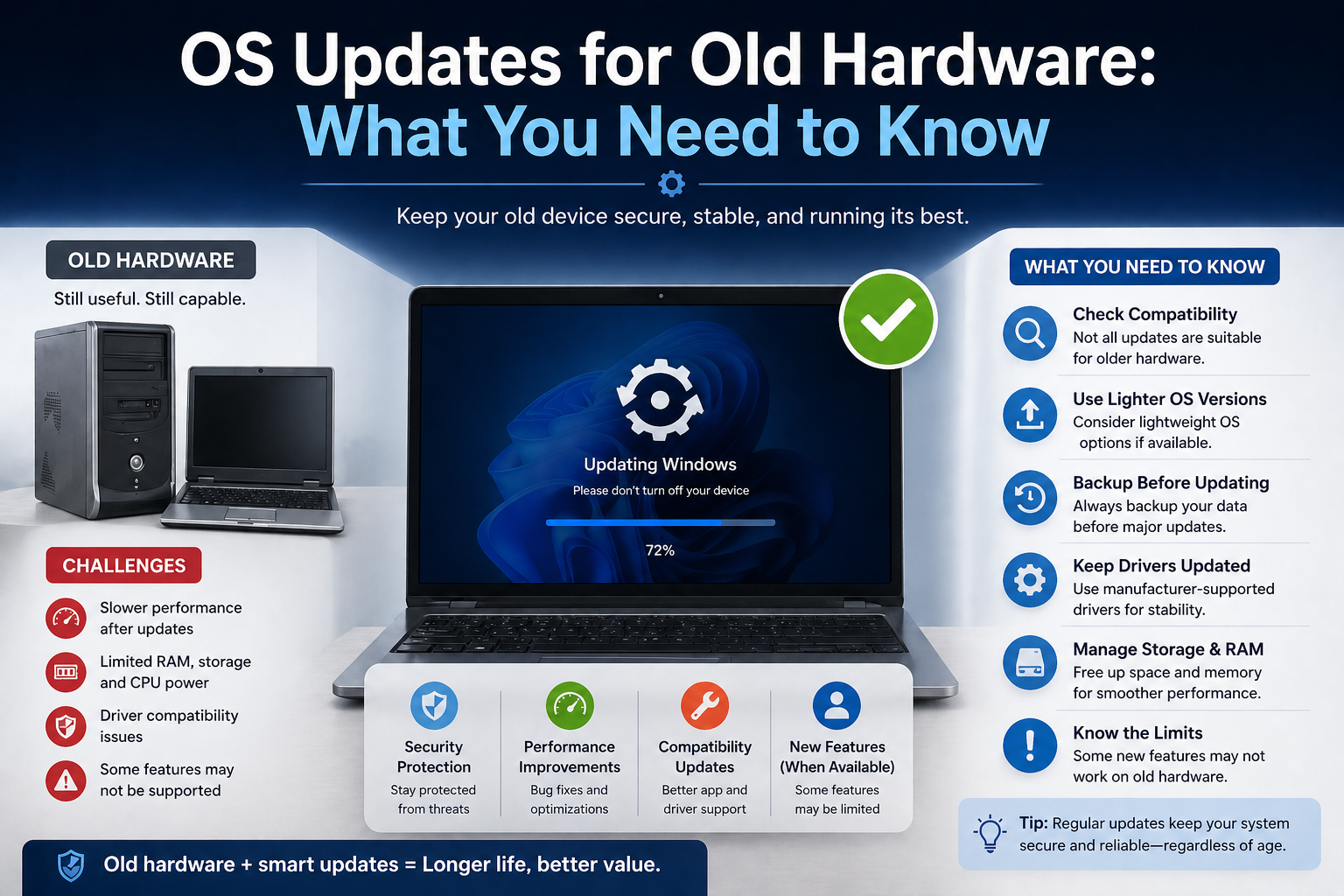
One of the most discussed aspects of Windows 11 is its stricter system requirements. Microsoft raised the minimum hardware standards to ensure better performance, improved security, and long-term reliability. As a result, some older devices that run Windows 10 smoothly may not support Windows 11.
These requirements are designed to support modern processors, advanced security features, and newer system architectures. While this decision disappointed some users, it helps Microsoft deliver a more stable and secure operating system for the future.
Before upgrading, users are encouraged to check device compatibility using Microsoft’s tools to avoid installation issues.
Minimum Hardware Requirements
To install and run Windows 11, a device must meet the following minimum hardware requirements:
- A compatible 64-bit processor with at least 1 GHz clock speed and two or more cores
- 4 GB of RAM or more
- 64 GB of available storage space
- UEFI firmware with Secure Boot capability
- TPM version 2.0
- A DirectX 12 compatible graphics card with a WDDM 2.0 driver
- A high-definition display (720p or higher)
These requirements ensure that Windows 11 can run smoothly, handle modern applications, and provide a consistent user experience. Devices that meet or exceed these specifications generally benefit from faster performance and better stability.
TPM 2.0 and Secure Boot Explained
TPM 2.0 (Trusted Platform Module) is a hardware-based security feature that plays a crucial role in protecting system data. It securely stores encryption keys, passwords, and certificates, making it much harder for attackers to access sensitive information. Windows 11 relies on TPM 2.0 to support features like device encryption, Windows Hello, and secure identity protection.
Secure Boot is another important security feature required by Windows 11. It ensures that only trusted software loads during the system startup process. By blocking unauthorized or malicious code from running at boot time, Secure Boot helps protect the system from rootkits and boot-level malware.
Together, TPM 2.0 and Secure Boot significantly improve system security. While they may limit compatibility with older hardware, they help create a safer computing environment and align Windows 11 with modern security standards.
New Features of Windows 11
Windows 11 introduces a wide range of new features designed to improve productivity, enhance performance, and create a more modern and enjoyable user experience. Microsoft has focused on making the operating system more intuitive, visually appealing, and efficient for both everyday users and professionals. From interface changes to greater system-level improvements, Windows 11 feels more refined and future-ready than its predecessors.
Redesigned User Interface
One of the most noticeable changes in Windows 11 is its completely redesigned user interface. The new design features rounded corners, softer shadows, and a cleaner layout that gives the operating system a more modern and polished appearance. The interface is inspired by simplicity and consistency, making it easier for users to focus on their work without unnecessary distractions.
Windows 11 also introduces a centered layout for system elements, improving visual balance and accessibility. Animations are smoother, transitions feel more natural, and overall responsiveness is enhanced, creating a more fluid experience across the system.
Start Menu and Taskbar Changes
The Start Menu in Windows 11 has been redesigned to be simpler and more user-friendly. Live Tiles have been removed and replaced with a grid of pinned applications and a recommended section that shows recently used files and apps. This change makes the Start Menu faster, cleaner, and less cluttered.
The Taskbar icons are now centered by default, giving Windows 11 a modern look similar to other contemporary operating systems. Users can still move the icons to the left if they prefer a traditional layout. The Taskbar is also more streamlined, focusing on essential functions while reducing visual noise.
Snap Layouts and Multitasking
Windows 11 significantly improves multitasking with the introduction of Snap Layouts. This feature allows users to organize open windows into predefined layouts quickly and easily. By hovering over the maximize button, users can choose from several layout options that suit their workflow.
Snap Groups remember the window arrangements, making it easy to switch between different tasks without losing organization. This is especially helpful for professionals who work with multiple applications at the same time, such as writers, developers, and designers.
Virtual Desktops
Virtual Desktops in Windows 11 are more flexible and customizable than ever before. Users can create multiple desktops for different purposes, such as work, personal use, or entertainment. Each virtual desktop can have its own wallpaper, helping users visually separate tasks and stay organized.
Switching between desktops is smooth and fast, allowing users to manage multiple projects without cluttering a single workspace. This feature is particularly useful for remote workers and multitaskers.
Widgets Feature
Windows 11 introduces a dedicated Widgets panel that provides quick access to personalized information such as weather updates, news, calendar events, and to-do lists. Widgets are powered by artificial intelligence and adapt to user preferences over time.
The Widgets panel is easily accessible from the Taskbar and offers a distraction-free way to stay informed without opening multiple apps or browser tabs. It enhances productivity by delivering relevant information at a glance.
Microsoft Teams Integration
Microsoft Teams is built directly into Windows 11, making communication more seamless and accessible. Users can start chats, voice calls, or video meetings directly from the Taskbar without opening a separate application.
This integration is especially useful for remote workers, students, and businesses that rely on online collaboration. It simplifies communication and ensures that connecting with others is just one click away.
Gaming Enhancements (DirectStorage & Auto HDR)
Windows 11 offers major improvements for gamers, making it one of the best Windows versions for gaming. DirectStorage technology allows games to load faster by reducing load times and improving data transfer between the storage device and the GPU.
Auto HDR enhances the visual quality of games by automatically improving lighting, colors, and contrast in supported titles. These features deliver smoother gameplay, faster performance, and more immersive graphics, especially on modern hardware.
Android Apps Support
One of the most exciting features of Windows 11 is its support for Android apps. Through the Microsoft Store and related technologies, users can install and run Android applications directly on their Windows devices.
This feature bridges the gap between mobile and desktop experiences, allowing users to access popular mobile apps on a larger screen. It increases flexibility and expands the software ecosystem available on Windows 11.
Performance Improvements in Windows 11
Windows 11 is optimized to deliver better performance compared to Windows 10, especially on newer hardware. The operating system prioritizes active applications, improves memory management, and reduces background resource usage.
These optimizations result in faster startup times, smoother multitasking, and improved battery life on laptops. Windows 11 also handles updates more efficiently, minimizing disruptions and reducing system slowdowns during installations.
Security Features in Windows 11
Security is a core focus of Windows 11. The operating system includes advanced security technologies such as TPM 2.0, Secure Boot, virtualization-based security, and improved malware protection. These features work together to protect user data and prevent unauthorized access.
Windows 11 also enhances identity protection through features like Windows Hello and device encryption. By enforcing higher security standards, Microsoft ensures that Windows 11 provides a safer and more reliable computing environment for both individuals and organizations.
Windows 11 vs Windows 10 Comparison
Windows 11 and Windows 10 share the same core foundation, but they differ significantly in design, features, performance optimizations, and security standards. Windows 10 was created to support a wide range of hardware and users, while Windows 11 is built with a forward-looking approach, focusing on modern devices and advanced security.
In terms of design, Windows 11 introduces a completely refreshed user interface with rounded corners, centered taskbar icons, and a simplified Start Menu. Windows 10, on the other hand, uses a more traditional layout with Live Tiles and left-aligned elements. The newer design in Windows 11 feels cleaner and more intuitive, especially for new users.
Performance is another key area of difference. Windows 11 is optimized for newer processors and hardware, offering faster startup times, smoother multitasking, and better power efficiency. Windows 10 performs well on older systems but lacks some of the behind-the-scenes optimizations found in Windows 11.
Security is a major distinction between the two. Windows 11 enforces stricter hardware requirements such as TPM 2.0 and Secure Boot, enabling advanced protection against modern cyber threats. Windows 10 offers solid security features,s but does not require these technologies, making it less secure by default on older hardware.
Feature-wise, Windows 11 includes Snap Layouts, improved virtual desktops, Widgets, deeper Microsoft Teams integration, and enhanced gaming technologies like DirectStorage and Auto HDR. Windows 10 supports basic versions of these features but lacks the refined experience and performance benefits available in Windows 11.
Pros of Windows 11
One of the biggest advantages of Windows 11 is its modern and visually appealing design. The clean interface, smooth animations, and consistent layout create a more enjoyable user experience, reducing clutter and distractions.
Windows 11 offers improved multitasking through Snap Layouts and Snap Groups, making it easier to manage multiple applications at once. This is especially beneficial for professionals, students, and remote workers who rely on efficient workflows.
Performance improvements are another strong advantage. Windows 11 is optimized for modern hardware, resulting in faster boot times, improved system responsiveness, and better battery life on laptops and tablets.
Security is significantly enhanced in Windows 11. Features like TPM 2.0, Secure Boot, virtualization-based security, and advanced malware protection provide stronger defense against cyber threats and data breaches.
Gamers benefit greatly from Windows 11, as it includes technologies like DirectStorage and Auto HDR, which improve game loading times and visual quality. These features make Windows 11 one of the best Windows versions for gaming.
Windows 11 also supports Android apps, allowing users to run mobile applications on their PCs. This expands the software ecosystem and offers greater flexibility for users who rely on mobile apps.
Cons of Windows 11
Despite its many advantages, Windows 11 also has some drawbacks. The most common concern is its strict hardware requirements. Many older but still capable devices are not compatible with Windows 11, forcing users to either upgrade their hardware or continue using Windows 10.
Some users find the redesigned Start Menu and Taskbar less customizable compared to Windows 10. The removal of Live Tiles and limited taskbar options may feel restrictive, especially for long-time Windows users.
Software compatibility can also be an issue, particularly with older applications and drivers. While most modern software works well on Windows 11, certain legacy programs may face compatibility problems.
Another downside is the learning curve for users accustomed to Windows 10. The new layout and settings organization may require time to adjust, especially for less tech-savvy users.
Windows 11 may also show performance issues on lower-end systems that barely meet the minimum requirements. In such cases, users may experience slower performance compared to Windows 10.
Who Should Upgrade to Windows 11?
Upgrading to Windows 11 is ideal for users who want a modern, secure, and feature-rich operating system. Professionals and remote workers benefit from enhanced multitasking features like Snap Layouts, Snap Groups, and improved Virtual Desktops, which make handling multiple applications and projects more efficient. Creative professionals, such as graphic designers, video editors, and developers, will appreciate the smoother interface, better window management, and performance improvements on modern hardware.
Gamers should also consider upgrading, as Windows 11 offers technologies like DirectStorage, Auto HDR, and better support for high-refresh-rate monitors, resulting in faster load times, improved graphics, and a more immersive experience. Users who rely heavily on collaboration tools will find Microsoft Teams integration directly into the Taskbar convenient for messaging, calls, and video meetings.
Additionally, those who want a visually appealing and clean interface with consistent design elements across apps and system features will find Windows 11 to be a significant improvement over previous versions. Security-conscious users will also benefit from advanced protections like TPM 2.0, Secure Boot, and virtualization-based security, which are mandatory in Windows 11 to protect sensitive data.
Who Should Not Upgrade to Windows 11?
While Windows 11 offers many advantages, it is not ideal for everyone. Users with older hardware that does not meet the system requirements, such as lacking TPM 2.0, Secure Boot, or a compatible processor, will be unable to upgrade without investing in new hardware. Attempting to run Windows 11 on unsupported devices can lead to instability, crashes, or reduced performance.
Businesses or users relying on legacy software or specialized applications may also face compatibility issues. Some older programs and drivers are not fully supported in Windows 11, which could disrupt workflows in professional or industrial environments.
Casual users who are comfortable with Windows 10 may also prefer to wait, as Windows 10 will continue receiving updates and support until 2025. For those who prioritize stability over new features, staying on Windows 10 may provide a more consistent and tested experience without needing to adapt to interface changes or reconfigure applications.
Common Problems and Issues in Windows 11
Despite its modern features, Windows 11 is not free from issues. Some users have reported compatibility problems with older software and drivers, which can cause certain applications to crash or fail to run. Hardware limitations can also lead to slower performance if the system barely meets the minimum requirements.
Another common issue involves system updates. Windows 11 updates can sometimes fail to install or cause temporary slowdowns, requiring troubleshooting. Users may also experience difficulties adjusting to the new interface, including the centered taskbar, redesigned Start Menu, and modified settings layout.
Gaming performance can occasionally be affected on systems that do not fully support DirectStorage or Auto HDR, resulting in visual or load-time inconsistencies. Network and peripheral device issues, such as printer or external drive compatibility, have also been reported by some users.
Lastly, some users experience temporary glitches with Widgets, Snap Layouts, or Virtual Desktops, particularly after updates, which may require a restart or system adjustment to resolve.
Tips to Optimize Windows 11 Performance
To get the best experience from Windows 11, users can follow several optimization strategies:
- Keep Windows Updated: Regular updates include performance improvements, security patches, and bug fixes that keep the system running smoothly.
- Manage Startup Programs: Disable unnecessary startup apps via Task Manager to reduce boot times and free up system resources.
- Use Storage Sense: Enable Storage Sense to automatically clean temporary files and manage disk space efficiently.
- Adjust Visual Effects: Windows 11’s visual effects can be resource-intensive; users can adjust them in Performance Options for a balance between appearance and performance.
- Update Drivers: Ensure all hardware drivers, especially graphics and storage drivers, are up to date to prevent crashes and improve efficiency.
- Optimize Gaming Settings: For gamers, enabling DirectStorage and adjusting Auto HDR settings can significantly improve load times and visuals.
- Enable Virtual Memory Management: Ensure virtual memory (paging file) settings are properly configured to support multitasking and memory-heavy applications.
- Use High-Performance Power Plan: Switching to a high-performance power plan on laptops and desktops can improve responsiveness and speed, particularly for demanding tasks.
- Regularly Restart the System: Restarting helps clear temporary files and memory caches, maintaining smooth operation.
- Monitor Resource Usage: Use Task Manager or Resource Monitor to identify and address applications that consume excessive CPU, memory, or disk resources.
By following these steps, users can maximize the performance, responsiveness, and stability of Windows 11, making the experience more productive and enjoyable for daily tasks, work, and gaming.
Final Verdict: Is Windows 11 Worth It?
Windows 11 is worth upgrading for users with compatible hardware who want a modern, secure, and efficient operating system. Its redesigned interface, improved multitasking features, better gaming support, and advanced security make it ideal for professionals, gamers, and tech-savvy users.
However, those with older devices, legacy software, or a preference for stability may choose to stay on Windows 10 until 2025. Overall, if your system meets the requirements, Windows 11 offers a smoother, faster, and more visually appealing experience.