Introduction: Why Compare Desktop and Mobile Operating Systems?
Technology touches nearly everything we do, from long work sessions on a laptop to quick checks on a phone. Each device runs an operating system that shapes how we interact with apps, hardware, and data. Comparing desktop and mobile OSes helps readers understand trade-offs — why one is better for heavy work and the other for on-the-go convenience — so they can pick the right tool for the job.
What Is a Desktop Operating System?
A desktop operating system is software that manages the hardware and software of a personal computer or laptop. It coordinates CPU, memory, storage, and peripherals while providing a user interface for running applications, managing files, and configuring settings. Desktop OSes are built to handle sustained workloads, multitasking, and a wide variety of software.
Common Examples (Windows, macOS, Linux)
Windows dominates in business and consumer PCs thanks to broad hardware and software support. Creative professionals favor macOS for its polished ecosystem and tight hardware integration. Linux powers servers and developer machines and appeals to users who want deep customization and open-source control.
Typical Use Cases
Desktops shine in tasks that demand performance or precision: software development, video editing, graphic design, scientific computing, and gaming. They’re also preferred for long-form typing, multi-window workflows, and setups requiring multiple monitors or specialized peripherals.
What Is a Mobile Operating System?
A mobile operating system runs on smartphones and tablets and is optimized for touch input, battery life, and sensors like GPS and cameras. Mobile OSes manage app lifecycles tightly to conserve resources and deliver fast, glanceable interactions for everyday tasks.
Common Examples (Android, iOS)
Android runs on devices from many manufacturers, offering flexibility and wide customization. iOS runs exclusively on Apple devices and emphasizes smooth performance, strong privacy defaults, and seamless integration across Apple hardware and services.
Everyday Usage Scenarios
Mobile OSes are ideal for communication, social media, navigation, quick browsing, photography, and media consumption. They prioritize instant access — checking messages, snapping photos, following maps — rather than long, multi-window sessions.
User Interface Differences
The UI of each platform reflects how people use the device: desktops give space for complex interfaces and multiple windows; mobile UIs are simplified for touch and small screens. Design choices such as icon size, input methods, and layout patterns are driven by these physical constraints.
Keyboard & Mouse vs Touch Interaction
Desktops rely on precise input from a keyboard and mouse (or trackpad), which speeds text entry and fine manipulation. Mobile devices use touch gestures — taps, swipes, pinches — that are intuitive for casual use but less precise for detailed tasks.
Screen Size and Layout Design
Desktops support large displays and multi-window layouts that make multitasking and content creation efficient. Mobile layouts prioritize single tasks, readable typography, and gesture-driven navigation so users can accomplish things quickly on compact screens.
Hardware and Performance Requirements
Desktop and mobile operating systems are tuned to the hardware they run on — and that shapes what each can do well. Below, we break down the main differences so readers understand why a laptop behaves differently from a phone, even when doing the “same” task.
Processing Power and RAM
Desktop OSes assume access to more powerful CPUs and larger amounts of RAM. That lets them:
- Run heavy, multi-threaded applications (video editors, virtual machines, compilers).
- Keep many background processes and large datasets in memory for faster switching.
- Schedule CPU time for complex tasks without strict power constraints.
Mobile OSes, by contrast, are optimized for power-efficient processors (ARM-based chips) and far smaller RAM budgets. They:
- Prioritize responsiveness for foreground apps.
- Use aggressive memory management (suspend/terminate background apps) to free resources.
- Offload heavy work to specialized hardware (NPU for AI, GPU for graphics) when available.
Battery Usage and Power Efficiency
Power is a core design constraint for mobile OSes — phones must last a day or more on a single battery. Mobile OSs, therefore:
- Throttle background activity and network use.
- Use adaptive brightness, app standby, and platform-level power-saving APIs.
- Schedule intensive tasks (backups, large updates) for charging times or low-power windows.
Desktop OSes care less about single-charge runtime (except laptops). They offer:
- More consistent high-performance modes (game or turbo modes).
- Fine-grained control over CPU/GPU power states for heavy workloads.
- Easier access to continuous power for servers/workstations, so energy constraints are secondary.
Software and Application Support
The ecosystems for apps differ drastically between desktop and mobile — and that changes how software is distributed, sandboxed, and used.
Desktop Software Capabilities
Desktop apps tend to be feature-rich and unrestricted:
- Full access to system resources, external hardware, and low-level APIs.
- Complex GUIs and multi-window interfaces built for productivity.
- Easier to install third-party software from many sources (web, vendor installers, package managers).
This flexibility suits professional software (DAWs, IDEs, CAD) but also increases the surface area for misconfiguration and security risks.
Mobile Apps and App Stores
Mobile apps live inside curated marketplaces (App Store, Google Play) and stricter platform rules:
- Apps are usually sandboxed with limited system access for safety and battery reasons.
- Installation is mostly through app stores, which enforce guidelines and automatic updates.
- Apps are designed for short interactions and efficient use of sensors (GPS, camera, accelerometer).
This model reduces user friction and improves security, but limits very low-level or highly customized software.
Multitasking and Productivity
Both environments support multitasking — but they approach it differently because of screen space, input method, and expected user behavior.
Window Management on Desktop OS
Desktop OSes excel at parallel work:
- Multiple resizable windows and virtual desktops enable complex workflows.
- Robust keyboard shortcuts, multi-monitor support, and precise window tiling.
- Background apps keep running, allowing long-running tasks (renders, compiles) without user attention.
These features favor workflows where simultaneous visibility and rapid context-switching matter — think research, coding, and content creation.
App Switching on Mobile OS
Mobile multitasking focuses on quick context switches and single-app dominance:
- Fullscreen or split-view apps with streamlined app-switchers and gestures.
- Background activity is limited; foreground app gets priority for CPU and network.
- Notifications and widgets provide glanceable, interrupt-driven multitasking.
This design supports quick interactions (replying to messages, checking maps) rather than extended, concurrent workflows.
Security and Privacy Features
Security models reflect each platform’s priorities: openness and power on desktop, strict containment and simplicity on mobile.
Desktop OS Security Approach
Desktop systems offer strong security tools but rely more on user decisions:
- Antivirus/endpoint tools, firewalls, and enterprise policies are common.
- Users and admins can configure permissions, install drivers, and run unsigned code.
- The broader installation surface (third-party installers, browser plugins) creates more vectors for malware and misconfiguration.
Mobile OS Built-In Protection
Mobile OSes bake security and privacy into the platform:
- App sandboxing, per-app permissions (camera, location), and runtime permission prompts.
- Mandatory code signing for store apps and often for sideloaded apps (more strict on iOS).
- OS-level features like biometric unlock, encrypted storage, and automatic app vetting.
The trade-off: stronger default protections and simpler UX, but less flexibility for advanced customizations or niche tools.
File Management and Storage Access
File management plays a major role in how users interact with their devices. Desktop and mobile operating systems handle storage very differently, mainly because of user needs and security considerations.
Advanced File Systems in Desktop OS
Desktop operating systems provide full access to the file system, allowing users to create, move, rename, and delete files freely. Systems like Windows, macOS, and Linux support advanced file structures, multiple partitions, and external drives. Users can organize data into folders, use file extensions, and manage permissions in detail. This level of control is essential for professional work such as software development, media production, and data management.
Simplified Storage in Mobile OS
Mobile operating systems use a simplified approach to storage to keep things secure and easy to use. Most files are managed by individual apps, and users interact with content through those apps rather than directly with folders. While file manager apps do exist, access is often limited to protect system integrity. This design reduces the risk of accidental data loss and improves overall system stability for everyday users.
Customization and Flexibility
Customization is another key area where desktop and mobile operating systems differ significantly. The level of control given to users depends on how the operating system is designed.
Desktop OS Customization Options
Desktop operating systems offer extensive customization options. Users can change themes, system layouts, keyboard shortcuts, startup programs, and even core system behavior. Advanced users can install third-party tools, modify system files, or use scripts to automate tasks. This flexibility makes desktop OS platforms ideal for power users and professionals who want complete control over their workflow.
Mobile OS Personalization Limits
Mobile operating systems focus more on consistency and simplicity. Users can customize wallpapers, app layouts, widgets, and some visual elements, but deeper system changes are usually restricted. These limitations help maintain performance, security, and battery life. While Android offers more personalization than iOS, both platforms limit system-level changes to ensure a smooth user experience.
Connectivity and Peripheral Support
Modern devices rely on multiple connectivity options to interact with other hardware and networks. Desktop and mobile operating systems support connectivity in different ways.
External Devices and Ports
Desktop operating systems support a wide range of external devices such as keyboards, mice, printers, scanners, external storage, and multiple monitors. Physical ports like USB, HDMI, Ethernet, and audio jacks are commonly available. This makes desktops and laptops highly adaptable for workstations, offices, and creative setups.
Wireless Connectivity Features
Mobile operating systems are heavily focused on wireless connectivity. Features like Wi-Fi, Bluetooth, mobile data, GPS, and NFC are deeply integrated into the system. Mobile OS platforms are designed to seamlessly connect with wireless earbuds, smartwatches, cars, and smart home devices, making them ideal for on-the-go usage.
Update and Maintenance Process
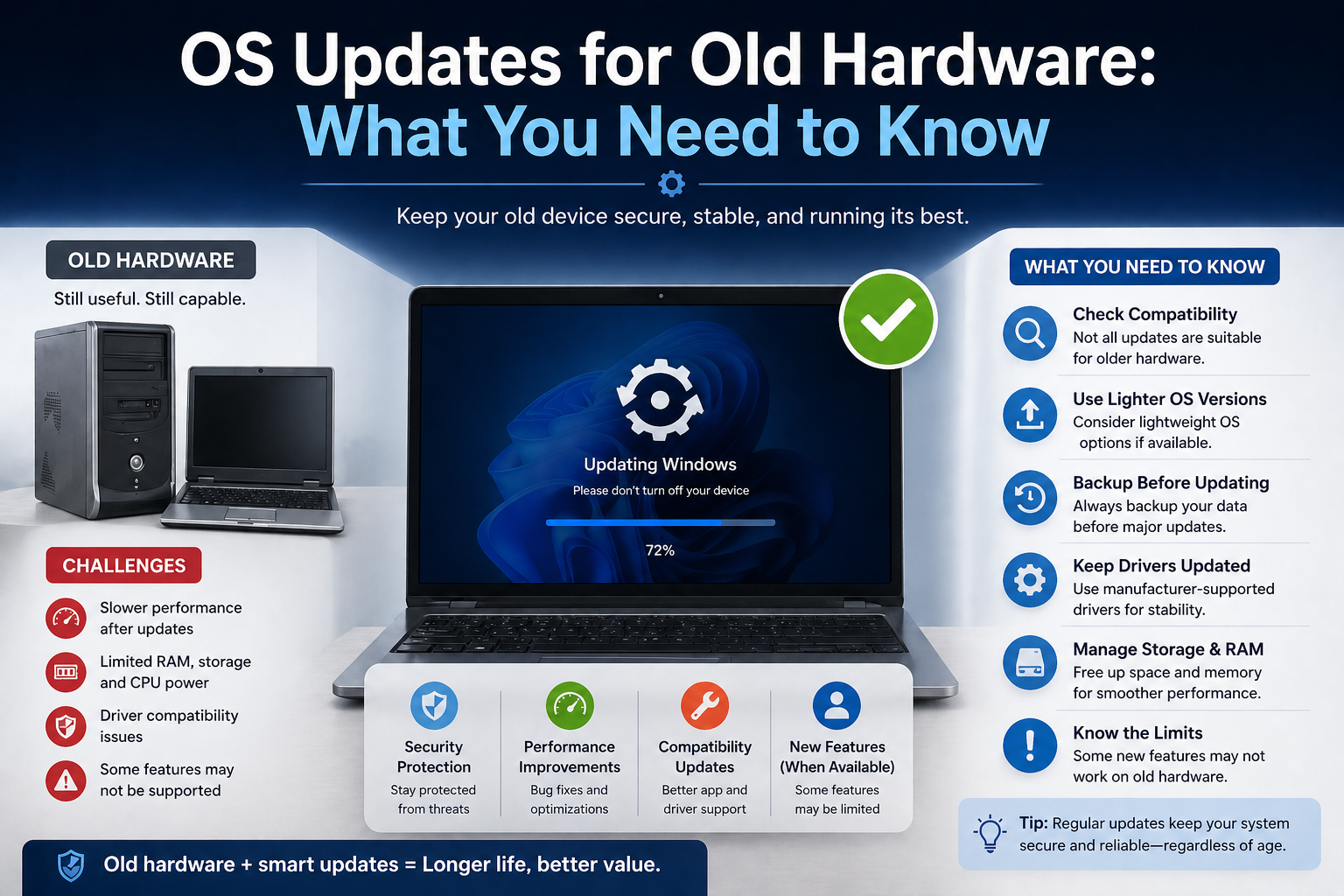
Keeping an operating system updated is important for performance, security, and new features. Desktop and mobile operating systems follow different update strategies.
Desktop OS Updates
Desktop operating system updates are usually larger and less frequent. Users often have control over when and how updates are installed. While this flexibility is useful, delayed updates can sometimes lead to security risks if users ignore them. Updates may also require system restarts and manual maintenance.
Mobile OS Automatic Updates
Mobile operating systems rely heavily on automatic updates. Security patches and app updates are installed in the background or during idle time, requiring minimal user involvement. This ensures devices stay protected and up to date without interrupting daily usage. Automatic updates are one of the key reasons mobile devices remain secure and stable over time.
Advantages of Desktop vs Mobile Operating Systems — finishing sections
Advantages of Desktop Operating Systems
- Performance and power: Desktop OSes take advantage of more powerful CPUs, GPUs, and larger RAM pools — ideal for heavy tasks like video editing, 3D rendering, large dataset analysis, and virtualization.
- Full-featured software: Desktop platforms host professional-grade applications (IDEs, DAWs, CAD, full Office suites) with richer toolsets and plugins.
- Advanced multitasking: Resizable windows, multi-monitor support, virtual desktops, and fine-grained window management boost productivity for complex workflows.
- File system control: Direct access to file systems, partitions, and external drives gives users total control over data organization and backups.
- Customization & automation: Users can tweak themes, services, startup processes, install low-level tools, write scripts, and use third-party utilities to shape the system to their workflow.
- Peripheral & expansion support: Wide support for printers, scanners, pro audio interfaces, GPUs, and other specialized hardware makes desktops versatile for professional setups.
Advantages of Mobile Operating Systems
- Portability & convenience: Mobile OSes are built for on-the-go use — always-connected, pocketable, and optimized for short, frequent interactions.
- Battery-first design: Aggressive power management and hardware integration stretch battery life and ensure practical all-day use.
- Simplicity & safety: Sandboxed apps, curated app stores, and default-permission models reduce user complexity and limit attack surface for many threats.
- Seamless sensors & connectivity: Deep integration with GPS, camera, accelerometer, NFC, and cellular radios enables use cases like navigation, contactless payments, and AR experiences.
- Fast updates & background maintenance: Automatic security patches and app updates keep the device protected with minimal user involvement.
- Ecosystem convenience: Tight platform ecosystems (iCloud/Apple, Google services) simplify syncing, device handoff, and media sharing.
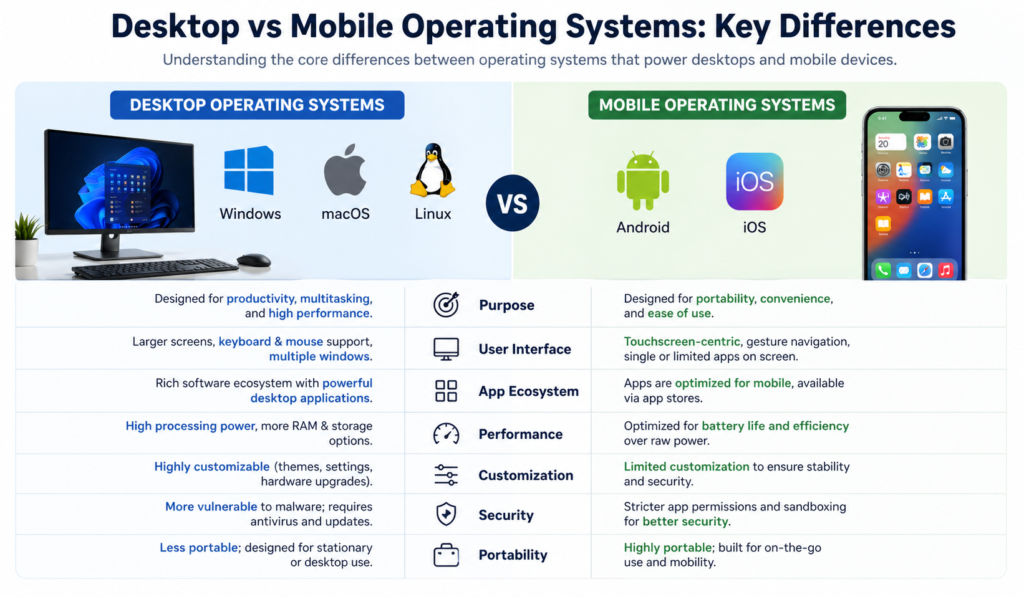
Desktop vs Mobile OS: Key Differences (Summary Table)
| Feature / Area | Desktop OS | Mobile OS |
|---|---|---|
| Primary input | Keyboard & mouse, precise pointing | Touch, gestures, on-screen keyboard |
| Screen & layout | Large displays, multi-window | Small screens, single or split view |
| Performance | High CPU/GPU, more RAM | Power-efficient CPUs, specialized NPUs |
| Battery | Usually mains-powered (exceptions: laptops) | Battery-first design and constraints |
| File access | Full file system access & external drives | App-centric storage, limited direct file access |
| Software model | Installers, package managers, broad sources | App stores, sandboxed apps, curated stores |
| Multitasking | True parallel windows/processes | Quick app switching, background limits |
| Customization | Deep system tweaks, scripts, third-party tools | Limited system-level changes; widgets/themes |
| Security model | User-configurable tools, AV, admin access | Sandboxing, per-app permissions, mandatory signing |
| Updates | User-controlled, larger updates | Frequent automatic/over-the-air updates |
| Best for | Power users, creators, devs, enterprise | Mobility, casual users, connectivity-first tasks |
Which Operating System Is Best for You?
Students
- Recommended: Mostly desktop (or laptop) plus mobile.
- Why: Laptops/desktops give power for coding, reports, data analysis, and study tools; mobile is great for quick research, notifications, and reading on the go. Chromebooks are a strong middle ground for budget-conscious students who primarily use web apps.
Professionals
- Recommended: Depends on profession.
- Creative professionals (video, design, audio): Desktop (macOS/Windows) for high-performance apps and peripheral support.
- Developers & engineers: Desktop/Linux or macOS for toolchains, virtualization, and scripting.
- Field workers, sales, delivery, emergency services: Mobile-first (Android/iOS) with enterprise management and mobile apps.
- Why: Choose the platform that supports your software stack and hardware needs; many professionals use both in a hybrid workflow.
Casual Users
- Recommended: Mobile-first (smartphone/tablet), occasionally paired with a basic laptop.
- Why: For messaging, social media, photos, streaming, and light productivity, mobile OSes offer simplicity, long battery life, and ease of use. A lightweight laptop or desktop adds value for tasks that require larger screens or more typing.
Future of Desktop and Mobile Operating Systems
- Convergence & continuity: Expect deeper cross-device continuity — apps and workflows that move seamlessly between phone, tablet, laptop, and cloud. OS vendors will further blur lines with adaptive interfaces and shared app frameworks.
- Cloud-first experiences: More compute will shift to the cloud (apps, storage, AI inference), making thin clients and browser-based apps more capable on both desktop and mobile.
- AI integration everywhere: Native AI assistants, smarter resource scheduling, on-device inference (using NPUs), and AI-assisted productivity features will become standard parts of OS offerings.
- Modular & secure architectures: Systems will adopt more modular kernels and stricter sandboxing to reduce attack surface while enabling safer extensibility.
- Foldables & new form factors: OS UX will adapt to foldable screens, dual-screen devices, and AR/VR headsets — requiring new windowing models and input methods.
- Battery & efficiency innovations: Advances in low-power silicon and OS-level power management will further close the gap between performance and battery life.
- Privacy by default: Expect stronger privacy controls, clearer permission UX, and greater on-device encryption as regulatory and user expectations rise.
Final Thoughts
Desktop and mobile operating systems are built with different purposes, and that’s exactly why both continue to exist side by side. Desktop operating systems shine when it comes to power, multitasking, customization, and professional work. They are designed for long sessions, complex tasks, and users who need full control over their system. On the other hand, mobile operating systems focus on simplicity, speed, portability, and battery efficiency, making them perfect for everyday communication, entertainment, and quick tasks on the go.
Instead of asking which operating system is better overall, the smarter question is which one fits your needs. For many people, the ideal setup is not choosing one over the other, but using both together. As technology evolves, the gap between desktop and mobile operating systems will continue to shrink, but their core strengths will remain different. Understanding these differences helps you use each device more effectively and get the best out of modern technology.