Introduction
The Importance of OS Updates
Operating system (OS) updates play a crucial role in keeping your computer secure, stable, and efficient. These updates often include important security patches that protect your system from malware, viruses, and cyberattacks. In addition, updates fix bugs, improve system performance, and sometimes introduce new features that enhance the overall user experience.
Without regular updates, systems become vulnerable to known security threats and may struggle to run newer applications. Whether you’re using a personal computer or managing devices in a business environment, staying updated is a key part of maintaining a healthy system.
Why Old Hardware Needs Special Consideration
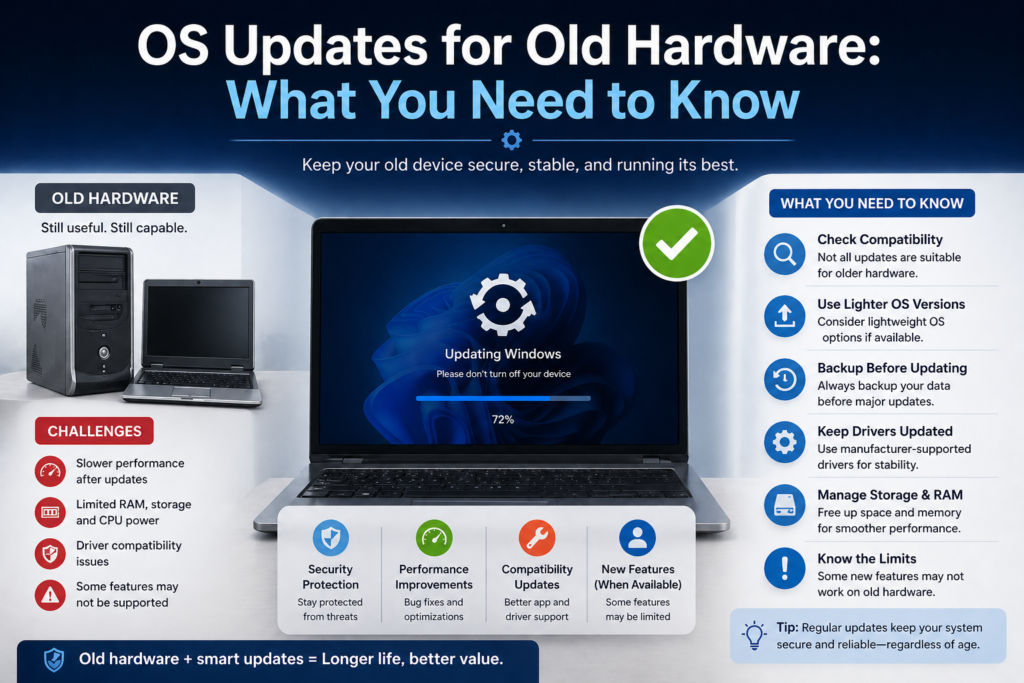
While updates are important, applying them to older hardware isn’t always straightforward. Devices with aging components may not have the processing power, memory, or storage required to handle modern OS updates efficiently. As a result, an update that improves performance on newer machines might slow down or even disrupt older systems.
Old hardware also tends to have limited driver support, meaning newer updates may not fully support existing components. This can lead to compatibility issues, reduced functionality, or system instability. Because of these risks, users with older devices need to carefully evaluate each update rather than installing it automatically.
What Counts as “Old Hardware”?
Age vs Performance
Old hardware isn’t defined strictly by age—it’s more about performance and capability. A computer that is five or more years old may be considered “old,” but what truly matters is whether it can meet the demands of modern software and operating systems.
For example, a well-maintained system with upgraded components like additional RAM or a solid-state drive (SSD) may still perform adequately despite its age. On the other hand, a newer device with low-end specifications might struggle just as much as older hardware. This makes performance a more reliable indicator than age alone.
Common Characteristics of Older Systems
Older hardware typically shares several limitations that can affect how well it handles OS updates:
- Limited RAM (e.g., 2GB–4GB), which restricts multitasking
- Traditional hard drives (HDDs) instead of faster SSDs
- Outdated processors with fewer cores and lower speeds
- Reduced storage capacity, making updates harder to install
- Lack of modern hardware support, such as newer graphics or connectivity standards
These factors combined can make newer OS versions feel slow, unresponsive, or even unusable on older machines. Understanding these characteristics helps users decide whether updating their system is the right choice.
Challenges of Updating Old Hardware
Limited Processing Power
Older systems often rely on outdated processors that lack the speed and efficiency of modern CPUs. As operating systems evolve, they are designed to take advantage of newer hardware capabilities, such as multi-core processing and advanced instruction sets. Unfortunately, older processors may struggle to keep up with these demands.
This can result in slower system responsiveness, delays when opening applications, and overall sluggish performance after an update. Tasks that once felt smooth may begin to lag, making everyday use frustrating.
Low RAM and Storage Constraints
Modern operating systems require significantly more memory (RAM) and storage space than older versions. Systems with limited RAM—such as 2GB or 4GB—may find it difficult to handle updated OS environments, especially when multiple applications are running.
Storage is another common issue. Updates often require large amounts of free disk space, not just for installation but also for temporary files and backups. Devices with small or nearly full drives may fail to install updates or experience errors during the process. Even if the update succeeds, low storage can lead to reduced system efficiency.
Driver and Compatibility Issues
Drivers act as a bridge between the operating system and hardware components. On older devices, manufacturers may stop releasing updated drivers, meaning newer OS versions may not fully support existing hardware.
This can lead to problems such as malfunctioning peripherals, display issues, or loss of features like Wi-Fi or audio. In some cases, the system may still function but with reduced performance or stability, making the update less beneficial overall.
How OS Updates Impact Performance
Slower Boot Times
After installing an OS update, many users notice an increase in boot time—especially on older hardware. This happens because newer systems often include additional startup processes and services that must load when the device powers on.
On systems with slower hard drives (HDDs) and limited processing power, this extra workload can significantly delay startup, turning what used to be a quick boot into a lengthy wait.
Increased Resource Usage
Newer OS versions are typically more resource-intensive. They may consume more CPU power, RAM, and disk usage due to enhanced features, improved security layers, and modern user interface elements.
While these improvements are beneficial on newer machines, they can overwhelm older systems. This leads to reduced multitasking capability, slower application performance, and occasional system freezes.
Background Tasks and Services
Modern operating systems rely heavily on background processes to maintain performance, security, and updates. These include indexing files, syncing data, running security scans, and checking for updates.
On older hardware, these background tasks can consume a large portion of system resources, leaving less available for active use. As a result, even simple actions—like opening a browser or switching between programs—may feel noticeably slower.
Here’s the next section of your blog, keeping the same clear and consistent tone:
Benefits of Updating Older Systems
Improved Security and Vulnerability Fixes
One of the most important reasons to update an operating system—regardless of hardware age—is security. OS updates often include patches for known vulnerabilities that hackers and malware can exploit. Without these updates, older systems become easy targets for cyber threats.
By installing updates, even on older hardware, users can significantly reduce the risk of data breaches, ransomware attacks, and unauthorized access. This is especially important for devices connected to the internet or used for sensitive tasks.
Bug Fixes and Stability
Updates don’t just focus on security—they also fix bugs and improve overall system stability. Older operating systems may contain unresolved issues that cause crashes, freezing, or unexpected behavior.
Installing updates can resolve these problems, making the system more reliable. Even on older hardware, stability improvements can enhance the user experience, especially for basic tasks like browsing, document editing, or media playback.
Limited Access to New Features
While older hardware may not fully support all new features introduced in modern OS updates, some improvements can still be beneficial. These might include enhanced user interfaces, better system tools, or improved compatibility with newer applications.
However, it’s important to note that not all features will run smoothly on older systems. In some cases, enabling these features may consume additional resources, so users should weigh the benefits against potential performance impacts.
Risks of Updating Old Hardware
System Slowdowns and Lag
One of the most common downsides of updating older hardware is a noticeable drop in performance. Newer operating systems are typically designed with modern hardware in mind, meaning they may require more processing power, RAM, and storage.
As a result, older systems can become slower after an update, with longer load times, laggy applications, and reduced responsiveness. This can negatively affect productivity and overall usability.
Software or Driver Breakage
Updates can sometimes introduce compatibility issues with existing software and drivers. Applications that worked perfectly before may stop functioning properly or fail to run altogether after an update.
Similarly, outdated or unsupported drivers may not work well with the new OS version. This can lead to problems such as missing features, hardware malfunctions, or reduced performance of key components like graphics, audio, or network connectivity.
Risk of Update Failures
Older systems are more prone to update failures due to limited resources and compatibility challenges. An update might fail during installation, become stuck, or even corrupt system files.
In worst-case scenarios, a failed update can leave the system unbootable or unstable, requiring troubleshooting or even a full OS reinstallation. This makes it essential to prepare properly—such as backing up data—before attempting any major update on older hardware.
Here’s the next section of your blog, continuing in the same clear and professional style:
How to Decide Whether to Update
Checking System Requirements
Before installing any OS update, it’s essential to review the official system requirements. These requirements outline the minimum and recommended specifications needed to run the update smoothly, including processor speed, RAM, and available storage.
If your device only meets the minimum requirements, the update may install successfully, but could result in poor performance. Ideally, your system should meet or exceed the recommended specifications to ensure a smoother experience.
Evaluating Hardware Capability
Beyond official requirements, it’s important to assess your system’s real-world performance. Consider how well your device currently handles everyday tasks. If it already struggles with basic operations, an update may make things worse.
On the other hand, if your system runs efficiently and has some upgraded components—such as additional RAM or an SSD—it may still handle updates reasonably well. Evaluating hardware capability helps you make a practical decision rather than relying solely on technical specifications.
Balancing Security vs Performance
One of the biggest decisions when updating old hardware is finding the right balance between security and performance. Skipping updates may help maintain speed, but it can leave your system exposed to security risks.
Installing updates improves protection but may slow down your device. In many cases, it’s best to prioritize critical security updates while being cautious about major feature upgrades. This balanced approach helps maintain both safety and usability.
Preparing Your System for Updates
Backing Up Important Data
Before installing any update, always back up your important files. This includes documents, photos, software settings, and any critical data. In case something goes wrong during the update process, a backup ensures you won’t lose valuable information.
You can use external drives, cloud storage, or backup software to create a secure copy of your data. This step is especially important for older systems, which are more prone to update-related issues.
Freeing Up Disk Space
OS updates require sufficient disk space not only for installation but also for temporary files and system backups. If your storage is nearly full, the update may fail or cause performance issues.
To prepare, delete unnecessary files, uninstall unused applications, and clear temporary data. This creates enough room for the update to install properly and helps the system run more efficiently afterward.
Updating Drivers Before OS Upgrade
Ensuring that your drivers are up to date before installing an OS update can help prevent compatibility issues. Updated drivers improve communication between the operating system and hardware components, reducing the risk of errors.
Check your device manufacturer’s website or use built-in update tools to install the latest available drivers. This step can significantly improve the chances of a smooth and successful OS update on older hardware.
Here’s the next section of your blog, keeping everything consistent and easy to read:
Tips to Improve Performance After Updates
Disable Unnecessary Startup Programs
After an OS update, many applications may automatically add themselves to the startup list. This can significantly slow down your system’s boot time and overall responsiveness—especially on older hardware.
Review your startup programs and disable anything that isn’t essential. This reduces the load on your system when it starts and frees up resources for more important tasks.
Optimize System Settings
Modern operating systems often include visual effects, animations, and background features that can consume valuable resources. While these enhancements improve appearance, they may not be necessary for everyday use—particularly on older systems.
Adjusting system settings, such as reducing visual effects, disabling unnecessary background services, and choosing performance-focused options, can help improve speed and responsiveness without requiring hardware upgrades.
Use Lightweight Applications
Switching to lightweight software can make a noticeable difference in performance. Many modern applications are resource-heavy, which can slow down older systems.
Consider using simpler alternatives for tasks like web browsing, document editing, and media playback. Lightweight applications use fewer system resources, helping your device run more smoothly even after an update.
Alternatives to Full OS Updates
Installing Lightweight Operating Systems
If your current OS becomes too demanding after updates, switching to a lightweight operating system can be a practical solution. Many Linux-based distributions are designed specifically for older hardware and can deliver better performance with fewer resources.
These systems often provide essential features without the extra overhead, making them ideal for extending the life of older devices.
Using Long-Term Support (LTS) Versions
Long-Term Support (LTS) versions of operating systems focus on stability and security rather than frequent feature updates. They receive regular security patches over an extended period without introducing major changes that could impact performance.
Using an LTS version allows you to keep your system secure while avoiding the risks and resource demands of frequent upgrades. This makes it a reliable choice for older hardware.
Switching to Cloud-Based Tools
Another effective alternative is to rely more on cloud-based applications instead of installing heavy software locally. Tools like online document editors, storage services, and web-based platforms shift most of the processing work to remote servers.
This reduces the strain on your local hardware and allows older systems to perform tasks more efficiently. As long as you have a stable internet connection, cloud-based tools can significantly improve usability on aging devices.
Managing Updates Efficiently
Manual vs Automatic Updates
Managing how updates are installed is especially important for older hardware. Automatic updates are convenient and ensure your system stays secure, but they can sometimes install resource-heavy updates without warning.
Manual updates, on the other hand, give you full control. You can review what’s being installed, avoid unnecessary feature updates, and focus only on critical patches. For older systems, a balanced approach—keeping security updates automatic while reviewing major upgrades manually—often works best.
Scheduling Updates at the Right Time
Updates can temporarily slow down your system during installation and setup. On older hardware, this impact can be even more noticeable.
Scheduling updates during off-hours—such as at night or when the device is not in active use—helps minimize disruption. This ensures that your work isn’t interrupted and allows the system to complete updates without affecting productivity.
Selective Update Installation
Not every update is essential for your system. Some updates focus on new features that may not be necessary—or even beneficial—for older hardware.
By selectively installing updates, you can prioritize security patches and stability improvements while skipping optional or feature-heavy upgrades. This approach helps maintain performance while still keeping your system protected.
Troubleshooting Common Issues
Fixing Slow Performance
If your system becomes slow after an update, there are several steps you can take to improve performance. Start by checking for unnecessary background processes and disabling startup programs that consume resources.
You can also free up disk space, adjust system settings for better performance, and ensure that drivers are up to date. In some cases, a simple restart or allowing the system time to complete background optimization tasks can resolve temporary slowdowns.
Rolling Back Problematic Updates
Sometimes an update may cause more harm than good, especially on older hardware. If you notice significant issues—such as crashes, missing features, or severe slowdowns—you may need to roll back the update.
Most operating systems provide an option to revert to a previous version within a limited time after installation. Rolling back can restore stability and performance while you wait for a more compatible update.
Resolving Compatibility Errors
Compatibility issues can arise when software or drivers don’t work well with the updated OS. To fix this, try updating or reinstalling affected applications and drivers.
If updates are not available, you may need to use compatibility modes, alternative software, or older versions of applications. Identifying and addressing these conflicts can help restore normal system functionality.
Security Tips for Older Devices
Using Antivirus and Firewalls
Security becomes even more critical for older systems, especially if they can’t support the latest updates. Installing a reliable antivirus program and enabling a firewall adds an extra layer of protection against threats.
These tools help detect and block malicious activity, reducing the risk of infection even if the operating system is not fully up to date.
Safe Internet Practices
User behavior plays a major role in system security. Avoid downloading files from untrusted sources, clicking on suspicious links, or visiting unsafe websites.
Practicing safe browsing habits can significantly reduce the chances of malware infections and other security issues, particularly on older devices with limited protection.
Limiting Exposure to Threats
Reducing your system’s exposure to potential threats is another effective strategy. This can include disconnecting the device from the internet when not in use, avoiding risky applications, and limiting administrative privileges.
By minimizing unnecessary risks, you can extend the life of your system and maintain a safer computing environment even without frequent updates.
When It’s Time to Upgrade Hardware
Warning Signs Your System Is Outdated
Even with careful updates and optimizations, there comes a point when old hardware can no longer keep up. Common signs include extremely slow performance, frequent system crashes, inability to run modern applications, and lack of support for newer operating systems.
If your device struggles with basic tasks like web browsing or document editing, it may be a clear indication that the hardware has reached its limits. Security concerns—such as no longer receiving critical updates—are another strong signal that it’s time to consider an upgrade.
Cost vs Benefit Analysis
Before deciding to upgrade, it’s important to evaluate the cost versus the expected benefits. Minor upgrades—such as adding more RAM or switching to an SSD—can significantly improve performance at a relatively low cost.
However, if multiple components need upgrading or the system still won’t meet modern requirements, investing in a new device may be more practical. Comparing the total upgrade cost with the price of a new system helps you make a smarter financial decision.
Upgrade vs Replacement
In some cases, upgrading specific components can extend the life of your device and improve performance enough for everyday use. This is often the best option when the system is still relatively capable.
On the other hand, full replacement becomes the better choice when the hardware is too outdated to support modern software, or when upgrade costs approach the price of a new machine. A newer system offers better performance, improved efficiency, and longer-term support, making it a worthwhile investment.
Conclusion
Summary of Key Points
Managing OS updates on old hardware requires a balanced approach. While updates are essential for security and stability, they can also introduce performance challenges on aging systems.
Understanding your hardware’s limitations, preparing properly before updates, and optimizing performance afterward can help you get the most out of your device. Exploring alternatives—such as lightweight operating systems or selective updates—can also extend the usable life of older systems.
Final Advice for Maintaining Old Hardware
To keep older devices running effectively, focus on what matters most: security, stability, and usability. Install critical updates, avoid unnecessary features, and regularly maintain your system by cleaning up storage and managing background processes.
At the same time, recognize when your hardware has reached its limits. Knowing when to upgrade or replace your system ensures you can continue working efficiently without unnecessary frustration.
With the right approach, even older hardware can remain functional and reliable for longer than expected.