Introduction
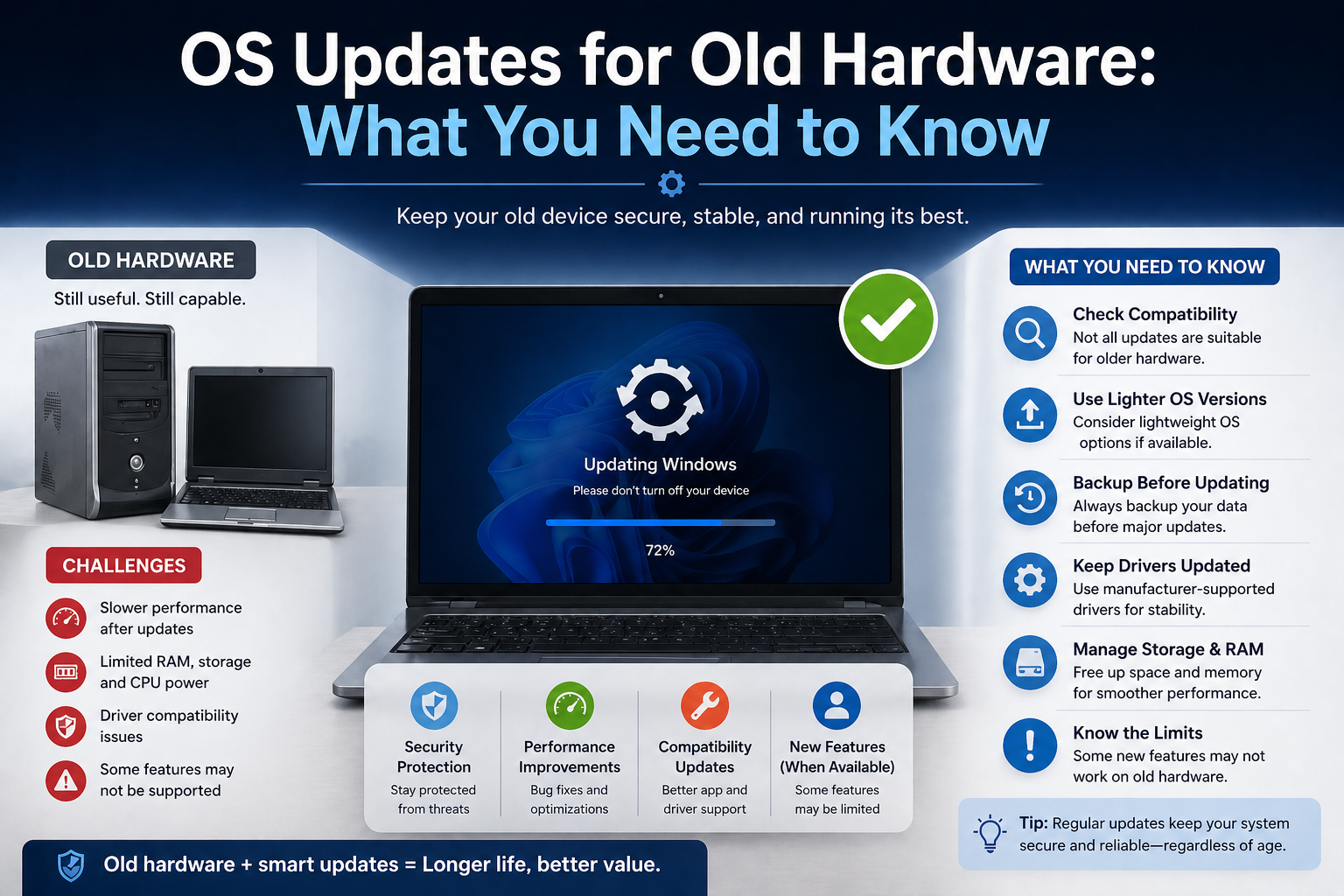
Operating system (OS) updates play a crucial role in keeping your computer secure, stable, and efficient. Whether you’re using Windows, macOS, or another platform, regular updates ensure your system is protected against the latest security threats, equipped with new features, and optimized for better performance. However, while updates are designed to improve your system, they don’t always go as planned.
Importance of Reliable OS Updates
Reliable OS updates are essential for maintaining the overall health of your device. They often include security patches that protect against malware, viruses, and other cyber threats. In addition, updates fix known bugs, improve system stability, and sometimes introduce new tools or enhancements that make your workflow smoother and more efficient. Without consistent and reliable updates, your system may become vulnerable, outdated, and prone to performance issues.
When Updates Go Wrong
Despite their benefits, OS updates can occasionally cause unexpected problems. You might experience issues such as slow performance, software incompatibility, failed installations, or even system crashes. In some cases, updates may get stuck during installation or lead to missing files and broken features. These problems can disrupt your work and create frustration, especially if your system becomes unstable.
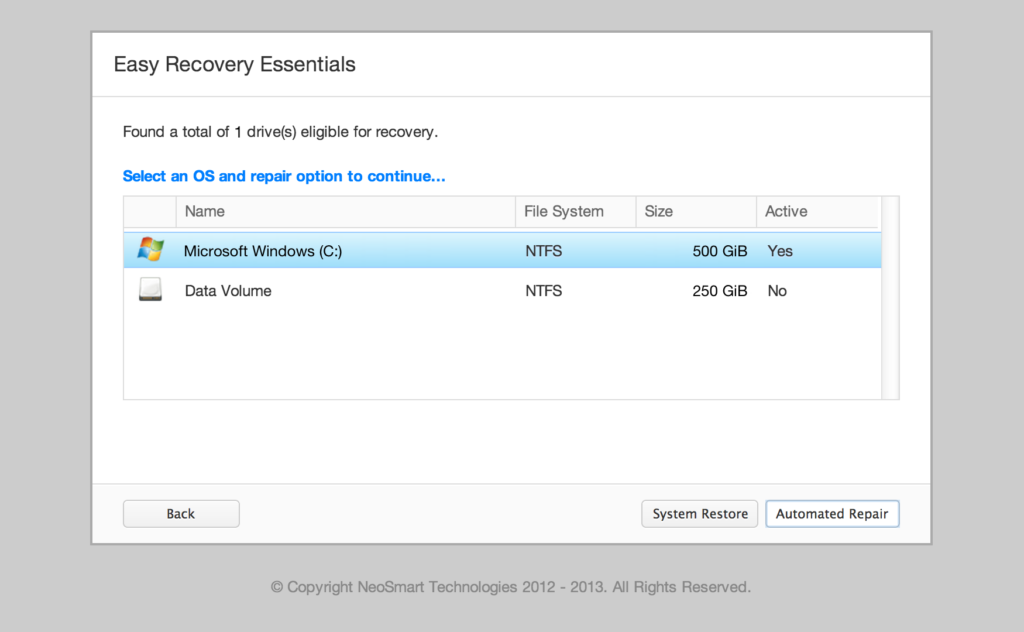
This is where repair methods—such as using ISO files—become valuable, offering a way to fix update-related issues without completely reinstalling the operating system.
What Is an ISO File?
Definition and Purpose
An ISO file is a complete digital copy of a physical disc, such as a DVD or CD, stored as a single file. It contains all the data, files, and structure needed to install or repair an operating system. ISO files are commonly used for distributing operating systems like Windows and macOS because they provide a reliable and consistent installation source.
The main purpose of an ISO file is to allow users to install, reinstall, or repair an operating system without needing physical media. It ensures that all necessary system files are available in one place, making the process more efficient and less prone to errors.
How ISO Files Work
ISO files work by replicating the exact structure of an installation disc. When you mount an ISO file on your system, it behaves like a virtual drive, allowing you to access its contents without burning it to a physical disc. Alternatively, you can create bootable media (such as a USB drive) from the ISO file to start your computer and perform installation or repair tasks.
During a repair process, the system uses the files inside the ISO to replace missing or corrupted system components while preserving your personal files and applications (if you choose a repair installation).
Why Use ISO Files for OS Repair
Advantages Over Standard Updates
Using ISO files for OS repair offers several advantages compared to regular update methods:
- Complete File Replacement: ISO-based repair uses a full set of system files, reducing the chances of missing or corrupted components.
- Bypassing Update Errors: It avoids issues caused by broken update services or incomplete downloads.
- Offline Capability: Repairs can be performed without relying on an internet connection once the ISO is downloaded.
- More Control: Users can choose repair options and ensure the correct version of the OS is installed.
Repair vs Clean Installation
When fixing OS issues, users often choose between a repair installation and a clean installation:
- Repair Installation:
This method reinstalls the operating system while keeping your personal files, applications, and most settings intact. It is ideal for fixing update-related problems without losing data. - Clean Installation:
This completely removes the existing OS and installs a fresh copy. While it can resolve deeper issues, it requires backing up data and reinstalling all applications, making it more time-consuming.
In most cases, using an ISO file for repair installation is a safer and quicker first step before considering a full system reset.
Understanding OS Update Problems
Common Issues After Updates
After installing OS updates, users may encounter a variety of problems, including:
- Slower system performance
- Applications are not working properly
- Driver incompatibility issues
- System crashes or random restarts
- Updates are getting stuck or failing to install
- Missing features or settings
These issues can affect both productivity and system reliability, making it important to address them quickly.
Why Updates Sometimes Fail
OS updates can fail for several reasons, such as:
- Corrupted Update Files: Incomplete or damaged downloads can prevent proper installation.
- Insufficient Storage Space: Updates require enough free space to install correctly.
- Driver Conflicts: Outdated or incompatible drivers may interfere with the update process.
- Interrupted Installation: Power outages or forced shutdowns can break the update process.
- Software Conflicts: Antivirus programs or background applications may block updates.
Understanding these causes helps in choosing the right repair method—such as using an ISO file—to restore the system efficiently without unnecessary data loss.
Signs Your System Needs Repair
Recognizing early warning signs of system issues can help you take action before problems become more serious. If your operating system starts behaving abnormally after an update, it may be time to consider a repair using an ISO file.
Performance Issues
One of the most common signs is a noticeable drop in performance. Your system may become slow to start, applications may take longer to open, or multitasking may feel laggy. You might also notice increased CPU or memory usage even when running basic tasks. These issues often indicate that system files are damaged or not functioning correctly after an update.
Boot Errors and Crashes
Frequent crashes, blue screen errors, or problems during startup are strong indicators that your system needs repair. If your computer gets stuck in a boot loop, fails to load the operating system, or shuts down unexpectedly, it could be due to corrupted system files or incomplete updates. These problems can make your device unusable if not addressed promptly.
Missing or Corrupted Features
After an update, some features or system components may stop working or disappear entirely. This could include missing settings, broken system tools, or apps that no longer function as expected. Such issues often point to incomplete or corrupted update installations, which can be resolved by repairing the OS using a complete set of files from an ISO.
When Repairing Is Better Than Reinstalling
Choosing between repairing and reinstalling your operating system depends on the severity of the issue. In many cases, repairing is the smarter and more efficient option.
Preserving Files and Applications
A repair installation allows you to fix system issues while keeping your personal files, installed applications, and most settings intact. This is especially useful if you have important data or complex software setups that would take time to restore. Instead of starting from scratch, you can resolve the problem without losing your work environment.
Saving Time and Effort
Repairing your system is generally faster and more convenient than performing a clean installation. You don’t need to back up and restore all your data or reinstall every application. With an ISO-based repair, the process focuses on fixing system files while minimizing disruption, making it an ideal first step before considering more drastic solutions.
Preparing for ISO-Based Repair
Before starting an OS repair using an ISO file, proper preparation is essential. Taking a few precautionary steps can prevent data loss, avoid installation errors, and ensure the repair process runs smoothly.
Backing Up Important Data
Always begin by creating a backup of your important files. Although a repair installation is designed to keep your data intact, unexpected issues can still occur. You can use external drives, cloud storage, or backup software to secure documents, photos, and other critical files. This step provides peace of mind and ensures you won’t lose valuable data during the repair process.
Checking System Requirements
Make sure your system meets the requirements for the operating system version you plan to repair. This includes having a compatible processor, sufficient RAM, and supported hardware. Attempting a repair with an incompatible setup may lead to installation failures or system instability.
Ensuring Enough Storage Space
OS repair processes require adequate free disk space to function properly. If your storage is nearly full, the repair may fail or cause additional issues. It’s a good idea to clean up temporary files, uninstall unused applications, or move large files to external storage to free up space before proceeding.
Choosing the Correct ISO Version
Selecting the right ISO file is critical for a successful repair. Using an incorrect version can lead to compatibility problems or prevent the repair from completing.
Matching OS Edition and Version
Ensure that the ISO file matches your currently installed operating system in terms of edition (such as Home, Pro, or Enterprise) and version. A mismatch can cause errors or limit your ability to keep files and applications during the repair process. Always download the ISO from an official and trusted source to avoid issues.
32-bit vs 64-bit Considerations
You must also choose between 32-bit (x86) and 64-bit (x64) versions of the OS. Most modern systems use 64-bit operating systems because they support more memory and deliver better performance. However, if your system is running a 32-bit version, you should use a matching ISO for repair to ensure compatibility.
Verifying ISO File Integrity
After downloading the ISO file, it’s important to confirm that it hasn’t been corrupted or tampered with.
Checksums and File Validation
Many official sources provide checksum values (such as SHA-256) for their ISO files. You can use verification tools to compare the checksum of your downloaded file with the official value. If the values match, the file is intact and safe to use.
Avoiding Corrupted Downloads
Corrupted ISO files can lead to failed repairs or installation errors. To avoid this, always download ISO files from reliable sources, ensure a stable internet connection during the download, and avoid interrupting the process. If you suspect corruption, it’s best to re-download the file before proceeding.
Methods to Use ISO Files for Repair
There are two primary ways to use an ISO file for repairing your operating system. The method you choose depends on whether your system is still bootable or not.
Mounting the ISO File
Mounting an ISO file allows you to use it as a virtual drive within your current operating system. This is the easiest method if your system is still accessible.
When you mount the ISO, it appears like a physical DVD drive on your computer. You can open it and run the setup file directly to begin the repair process. This method is commonly used for in-place repairs, where the OS is fixed without deleting files or applications.
Creating Bootable Media
If your system cannot boot properly, creating bootable media is a better option. This involves transferring the ISO file onto a USB drive or DVD so that your computer can start from it.
Once created, you can boot your system from the USB or DVD and access recovery or installation options. This method is especially useful for fixing severe issues such as startup failures or corrupted system files that prevent normal access.
Step-by-Step Guide for Windows Repair
Repairing Windows using an ISO file is a straightforward process when followed carefully. Below is a step-by-step guide to help you perform a successful repair installation.
Downloading the ISO
First, download the correct Windows ISO file from an official source, such as the Microsoft website. Make sure the version, edition, and architecture (32-bit or 64-bit) match your current system to avoid compatibility issues.
Mounting or Booting from ISO
If your system is running:
- Right-click the ISO file and select Mount.
- Open the mounted drive and locate the setup file.
If your system is not booting:
- Create a bootable USB using the ISO file.
- Restart your computer and boot from the USB drive by changing the boot order in BIOS/UEFI settings.
Running the Repair Installation
Once inside the setup environment, launch the installation process. Follow the on-screen instructions until you reach the installation options. Choose the option to upgrade or repair your current system rather than performing a fresh installation.
The system will begin copying files and replacing damaged or missing system components using the ISO.
Keeping Files and Applications
During the setup process, you will be given an option to keep your personal files and installed applications. Select this option to perform an in-place repair.
This ensures that your documents, software, and most settings remain unchanged while the operating system itself is repaired. After completion, your system should be more stable and free from update-related issues without requiring a full reinstall.
Step-by-Step Guide for macOS Repair
Repairing macOS using built-in tools is straightforward and does not usually require a separate ISO file, as Apple provides recovery options directly within the system.
Using macOS Recovery
macOS Recovery is a built-in feature that allows you to repair or reinstall the operating system.
- Restart your Mac.
- Immediately press and hold Command (⌘) + R until the Apple logo appears.
- Once the macOS Utilities window opens, you’ll see several options.
- You can use Disk Utility to check and repair your disk before reinstalling.
- Select Reinstall macOS to begin the repair process.
This method downloads the necessary system files from Apple’s servers and reinstalls the OS without removing your personal data (in most cases).
Reinstalling macOS via Installer
If you have a macOS installer file or bootable USB:
- Insert the bootable USB drive.
- Restart your Mac and hold the Option (⌥) key.
- Select the installer drive from the boot menu.
- Follow the on-screen instructions to reinstall macOS.
This method is useful if you have limited internet access or want to install a specific macOS version.
Troubleshooting Common Issues During Repair
Even with proper preparation, you may encounter issues during the repair process. Understanding these problems can help you resolve them quickly.
Installation Errors
Installation errors can occur due to corrupted files, insufficient storage, or interrupted processes. If you see error messages during installation:
- Restart the process and try again
- Ensure you have enough free disk space
- Verify that your installation files are not corrupted
- Disconnect unnecessary external devices
Compatibility Problems
Sometimes, the OS version you are trying to install may not be compatible with your hardware.
- Make sure your Mac supports the macOS version you are installing
- Check for firmware updates if required
- Avoid using outdated or unsupported installer versions
Compatibility issues can prevent installation from completing or cause system instability after repair.
Repair Fails or Freezes
If the repair process gets stuck or fails:
- Wait for some time, as installations can take longer than expected
- Restart your Mac and retry the process
- Use Disk Utility to repair the disk before reinstalling
- Try an alternative method, such as using a bootable installer instead of online recovery
If the problem persists, it may indicate deeper system or hardware issues, and a clean installation might be necessary as a last resort.
Post-Repair Steps
After successfully repairing your operating system using an ISO file or recovery tools, it’s important to take a few additional steps to ensure everything is functioning properly and to prevent future issues.
Checking System Stability
Start by observing your system’s overall performance. Check if previous issues—such as slow speed, crashes, or boot errors—have been resolved. Open commonly used applications, monitor startup time, and ensure there are no unusual errors or warnings. You can also review system logs or reliability history (on Windows) to confirm that the system is running smoothly.
Installing Pending Updates
Once your system is stable, check for any pending updates. Installing the latest updates ensures that your OS includes recent bug fixes, security patches, and performance improvements. However, it’s best to install updates gradually and monitor your system after each update to avoid reintroducing issues.
Updating Drivers and Software
Outdated drivers and applications can cause compatibility problems even after a successful repair. Make sure to update essential drivers such as graphics, network, and chipset drivers from official sources. Also, update your installed software to its latest versions to ensure compatibility with the repaired operating system.
Tips to Prevent Future Update Issues
Taking preventive measures can help you avoid similar problems in the future and keep your system running efficiently.
Regular Backups
Always maintain regular backups of your important data. Use external storage devices or cloud services to create copies of your files. Having a recent backup ensures that even if an update fails or causes issues, your data remains safe and easily recoverable.
Safe Update Practices
Before installing major updates, take a few precautions:
- Check user feedback or known issues related to the update
- Ensure your system has enough storage and battery (for laptops)
- Close unnecessary applications before starting the update
- Avoid interrupting the update process
These simple steps can significantly reduce the risk of update-related problems.
Monitoring System Health
Keep an eye on your system’s performance and health over time. Use built-in tools or third-party utilities to monitor CPU usage, memory, disk health, and system temperature. Early detection of unusual behavior can help you address potential issues before they become serious problems.
By following these post-repair steps and preventive tips, you can maintain a stable, secure, and high-performing system while minimizing the chances of future update failures.
Conclusion
Using ISO files to repair operating system update issues is a practical and effective solution for restoring system stability without the need for a full reinstall. Whether your system is experiencing performance slowdowns, failed updates, or missing features, an ISO-based repair provides a reliable way to fix underlying problems while preserving your data and applications.
Key Takeaways
- ISO files contain a complete set of system files, making them ideal for repairing corrupted or incomplete updates.
- Repair installations can resolve most update-related issues without deleting personal files or installed programs.
- Proper preparation—such as backing up data, choosing the correct ISO, and verifying file integrity—is essential for success.
- Common update problems like crashes, slow performance, and installation failures can often be fixed through ISO-based repair methods.
- Post-repair steps, including updates and driver checks, help ensure long-term system stability.
Final Recommendations
Before opting for a full system reset, always try repairing your OS using an ISO file as a first step. It saves time, reduces complexity, and minimizes data loss. Make it a habit to maintain regular backups, keep your system updated responsibly, and monitor performance to catch issues early.
By following the right approach and preventive practices, you can handle OS update problems confidently and keep your system running smoothly over the long term.