Introduction
Overview of macOS Updates
Apple regularly releases macOS updates to improve system security, introduce new features, enhance user experience, and fix bugs. These updates can range from minor security patches to major operating system releases that completely redesign the user interface or add significant functionality. macOS updates often include optimizations for system stability, compatibility with new hardware, and performance improvements, but they can also temporarily strain system resources, especially on older devices.
Why Understanding Performance Impact Matters
While updates are essential for keeping your Mac secure and up-to-date, they can have unintended consequences on performance. Some users notice slower startup times, temporary lag in applications, or increased battery usage after installing a new update. Understanding how updates affect performance can help users prepare their system, manage resources effectively, and troubleshoot issues if they arise. Being aware of these impacts ensures that your Mac continues to run smoothly while benefiting from the latest features and security enhancements.
Types of macOS Updates
Major Releases vs Minor Updates
Major releases are comprehensive updates that introduce new macOS versions, often changing the design, adding new system features, and improving underlying architecture. Examples include updates like macOS Ventura or macOS Sonoma. These releases can affect system performance because they may require more memory or processing power to run new features efficiently.
Minor updates typically focus on bug fixes, security enhancements, and small feature improvements. They are generally less resource-intensive and aim to refine the existing system rather than overhaul it. These updates are crucial for maintaining system stability without drastically impacting performance.
Security Patches and Hotfixes
Security patches are updates specifically designed to fix vulnerabilities that could be exploited by malware or hackers. While they are often small in size, their installation is critical for protecting your Mac. Hotfixes address specific issues reported by users or discovered by Apple after a major release. Although these updates are usually quick to install, they can still trigger background processes like reindexing or temporary system checks, which may slightly affect performance for a short period.
How Updates Can Affect Performance
Initial Slowdowns After Updating
After installing a macOS update, your Mac may experience temporary slowdowns. This is often due to system processes running in the background, such as indexing files for Spotlight search, updating system caches, or re-optimizing applications for the new macOS version. These processes can consume CPU, memory, and storage resources, making the system feel slower until they complete.
Resource-Heavy Features Introduced
Major updates sometimes introduce new features that require additional system resources. Examples include enhanced graphical interfaces, improved animations, or advanced machine learning capabilities. While these features enhance the user experience, they can put extra strain on older Macs with limited RAM or processing power, causing temporary or sustained performance changes.
Background Processes and Indexing
macOS updates often trigger a variety of background tasks. Spotlight reindexing, Photos library analysis, and system log updates are common processes that run automatically after an update. These processes are essential for system functionality and optimized search results, but they can increase CPU and disk usage, sometimes leading to sluggish performance until the tasks are completed. Monitoring Activity Monitor during this period can help identify which processes are consuming the most resources.
Hardware Considerations
macOS Updates on Older Macs
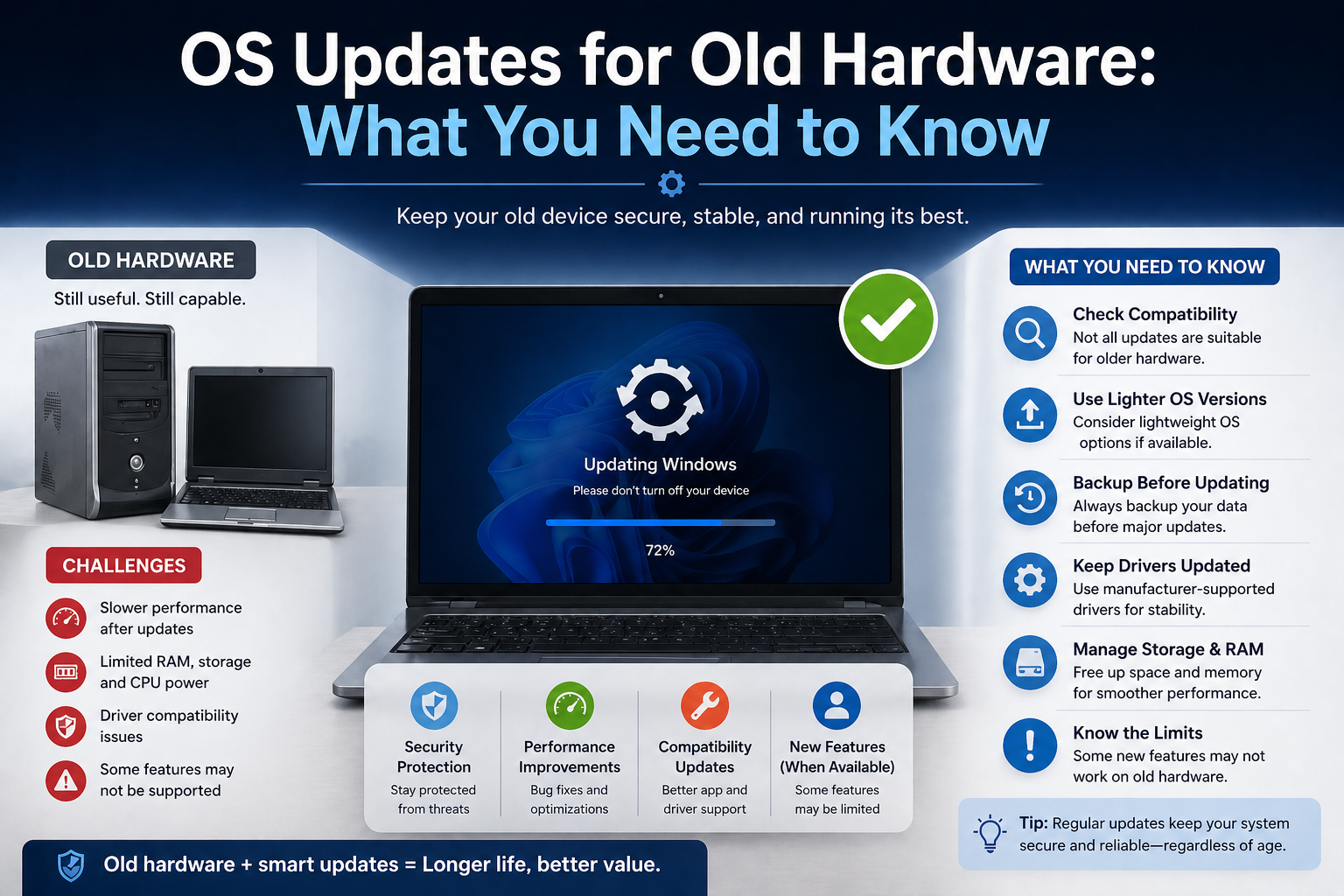
Older Macs often face more noticeable performance changes after a macOS update. While Apple designs updates to support several past generations of devices, newer macOS versions may include features optimized for the latest hardware. On older machines, this can lead to slower boot times, lag in apps, or reduced responsiveness. Users with older Macs should consider the trade-off between new features and system performance, and sometimes delaying a major update can help maintain stability.
RAM and Storage Requirements
macOS updates often increase the demand for system memory (RAM) and storage space. New features, background indexing, and enhanced system processes require additional memory to operate efficiently. Insufficient RAM can lead to slower multitasking and increased use of virtual memory, which puts extra strain on the storage drive. Similarly, if your Mac’s storage is nearly full, updates can slow down installation and post-update performance due to limited space for system caches and temporary files. Maintaining at least 15–20% free storage is recommended to avoid slowdowns.
SSD vs HDD Performance Differences
The type of storage in your Mac also impacts update performance. Macs with solid-state drives (SSDs) experience faster installation, quicker boot times, and smoother operation of resource-intensive features compared to traditional hard disk drives HDDsD). SSDs can handle the read/write demands of macOS updates more efficiently, reducing the duration of background processes like Spotlight indexing or system cache rebuilding. On older Macs with HDDs, these processes may take longer, resulting in temporary lag.
Software and App Compatibility
Update: es Breaking or Optimizing Apps
macOS updates can sometimes disrupt the functionality of existing applications. Major system changes, new security protocols, or deprecated APIs may cause certain apps to crash or behave unpredictably until developers release compatible versions. Conversely, updates can also optimize apps, improving speed and stability when the apps are updated to support the latest system enhancements.
Third-Party Software Impact
Third-party applications, especially those that integrate deeply with macOS (like antivirus software, virtualization tools, or system utilities), can be affected by updates. Some apps may require updates to function correctly, while others may conflict with new system security measures. Monitoring app behavior after a macOS update is crucial to ensure smooth performance.
Kernel Extensions and Drivers
Kernel extensions (kexts) and device drivers allow third-party software and peripherals to interact with macOS at a low level. Updates to macOS often include tighter security around kernel extensions, and incompatible kexts can cause crashes or reduced system performance. Keeping drivers up-to-date and uninstalling outdated extensions helps prevent conflicts and ensures that devices like printers, graphics cards, and external drives function correctly after an update.
Common Post-Update Issues
Slow Boot Times
After a macOS update, some users notice that their Mac takes longer to start up. This is often due to background processes like Spotlight indexing, updating system caches, and initializing new system services. On older Macs or devices with nearly full storage, these processes can be more noticeable. Slow boot times usually resolve within a few hours or days as the system completes these tasks, but monitoring startup items can help reduce unnecessary delays.
Increased CPU or Memory Usage
Updates can temporarily increase CPU and memory usage. macOS may run background tasks such as recalculating Spotlight indexes, updating the Photos library, or optimizing system files. These tasks consume resources, making the Mac feel slower or causing fans to run more frequently. Using Activity Monitor can help identify which processes are consuming the most resources, allowing users to monitor progress and take action if usage remains high.
Battery Drain on MacBooks
MacBooks may experience increased battery drain immediately after an update. The higher energy usage is typically linked to background tasks, reindexing, or new features running in the background. Users may also notice that apps behave differently under the new update, leading to additional power consumption. Allowing the Mac to complete background processes, checking for app updates, and calibrating the battery if needed can help restore normal battery life.
How to Optimize Performance After an Update
Cleaning System Caches
System caches store temporary files to speed up macOS operations, but after an update, some caches can become outdated or bloated. Cleaning caches—through built-in tools or third-party apps—can free up storage and improve system responsiveness. Key areas to consider include application caches, system caches, and browser caches.
Resetting SMC and PRAM/NVRAM
Resetting the System Management Controller (SMC) and PRAM/NVRAM can help resolve performance issues, particularly those related to power management, battery behavior, fan speeds, and display settings. This is a common troubleshooting step after updates that affect hardware-level functions.
Managing Startup Items
Too many apps and processes launching at startup can slow down your Mac after an update. Reviewing and disabling unnecessary startup items via System Settings > Users & Groups > Login Items can improve boot times and reduce background resource usage.
Reindexing Spotlight
Spotlight indexing ensures that macOS search functions work efficiently. After an update, reindexing may be automatically triggered, which can temporarily slow down the system. If performance remains sluggish, manually reindexing Spotlight by adding and removing your drive in System Settings > Spotlight > Privacy can help speed up searches and reduce system strain.
Monitoring macOS Performance
Keeping an eye on your Mac after an update helps you spot temporary background work, resource hogs, and real problems before they become annoying. Below are practical, detailed ways to monitor — and gather useful evidence if you need to fix something or ask for help.
Using Activity Monitor
Open it quickly with Spotlight (⌘ + Space → type Activity Monitor) or find it in Applications > Utilities.
What to check (by tab) and what it means:
- CPU — shows CPU % per process and overall system load.
- Sort by % CPU to see which app is using the most cycles right now.
- Short-lived spikes are normal (indexing, updates). Sustained high CPU by a single app is a red flag.
- Beware of It it can spike to manage thermal/IO, and killing it is not advised.
- Memoryis the most important area for perceived slowness. Look at:
- Memory Pressure graph (green = healthy; yellow/red = paging is happening).
- Compressed memory and swap used: if swap grows continuously, you likely need more RAM or to quit heavy apps.
- Check which apps use the most RAM and whether browsers (tabs, extensions) or virtualization tools are the culprits.
- Energy — useful for MacBooks. Shows Energy Impact, Avg Energy Impact, and whether apps prevent App Nap. High sustained energy use shortens battery life.
- Disk — shows bytes read/written per process. Heavy disk IO can cause slowness (especially on HDDs). Look for backup apps, Spotlight, or photo libraries doing writes.
- Network — shows data sent/received. Unexpected large transfers may indicate cloud sync or a misbehaving app.
Handy Activity Monitor actions:
- Search for a process name to find the culprit quickly.
- Inspect a process (double-click) to see open files & ports — useful when a process is accessing a file repeatedly.
- Sample Process to capture what a process was doing (useful to attach to a support ticket).
- Quit / Force Quit only when you know the process is safe to end — avoid terminating system processes arbitrarily.
Checking Disk and Memory Usage
Storage and memory problems are frequent causes of post-update slowness. Here’s how to check and act:
Disk checks and fixes:
- About This Mac > Storage gives a high-level view (what’s using space and how much is free). macOS likes having ~15–20% free — less free space can degrade performance and prevent system caches from working well.
- Use Disk Utility > First Aid to check and repair filesystem issues (run on your startup volume in Recovery Mode if necessary).
- APFS snapshots (used by Time Machine and updates) can temporarily consume space; you can list/trim local snapshots with If you’re comfortable using Terminal.
- S.M.A.R.T. status (Disk Utility) gives an early warning for failing drives — act on anything other than “Verified”.
Freeing disk space:
- Empty Trash and remove large unused files (check the largest folders via Finder or command-line tools).
- Offload big media (Photos/Movies) to external drives or cloud storage.
- Use System Settings > General > Storage tools to “Reduce Clutter” and offload unused files.
Memory diagnostics:
- Monitor Memory Pressure in Activity Monitor. Occasional paging is normal; constant pageouts / high swap indicates not enough physical RAM for your workload.
- Close or minimize RAM-heavy apps (browsers with many tabs, VMs, large editing programs) or add more RAM if your Mac supports it.
- For advanced checks,
vm_statIn Terminal, shows paging statistics — frequent pageouts are a sign of memory pressure. (Use these only if you’re comfortable with Terminal output.)
Logging and System Diagnostics
When intermittent problems or crashes occur, logs and diagnostics are what let you (or Apple/IT) pinpoint the root cause.
Where to look and how to capture evidence:
- Console.app (
Applications > Utilities) — live system log viewer and crash report collector. You can:- Use the search field to filter by process name (e.g.,
WindowServer,kernel, the app name, or keywords likecrashorerror. - Look at Crash Reports and Spin Reports (they show why an app quit or hung).
- Use the search field to filter by process name (e.g.,
- log command in Terminal —
log streamfor live logs, orlog show --last 1hto review recent events. Useful for reproducing issues while watching logs in real time. - sysdiagnose — a comprehensive diagnostics bundle. Run
sudo sysdiagnose -f ~/Desktop(creates a tarball on your Desktop) to collect system logs, kernel traces, and configurations to share with support. - Activity Monitor → Sample Process — captures a snapshot of what a process is doing; saves andincludese it with bug reports.
- Apple Diagnostics — restart and hold
Dto run built-in hardware tests if you suspect hardware issues (RAM, logic board, etc.). - System Report (
Apple menu > About This Mac > System Report) — useful to save and share hardware and software configuration when getting help.
What to include when you ask for help:
- Exact macOS version (e.g., macOS Sonoma 14.2), date/time the issue occurred, and steps to reproduce.
- Screenshots of Activity Monitor sorted by relevant columns, Console error messages, and any crash logs.
- Sysdiagnose or system report files if support requests them.
Quick monitoring checklist (practical routine)
- Open Activity Monitor and sort by CPU / Memory for one minute after you notice slowness.
- Check About This Mac > Storage for free space; run Disk Utility First Aid if anything looks off.
- Open Console to search for error messages around the time of the slowdown/crash.
- If the problem persists and you need help, run
sudo sysdiagnose -f ~/Desktopand save Activity Monitor samples/crash reports to share.
Best Practices for Smooth Updates
Backing Up Before Updating
Before installing any macOS update, especially major releases, always create a complete backup. Use Time Machine, an external SSD/HDD, or a cloud-based backup solution to secure your data. Backups protect against:
- Data loss from failed updates or unexpected crashes
- Compatibility issues that require rolling back
- Corrupted system files during installation
A solid backup ensures you can safely experiment with updates without risking important files or work.
Waiting Before Installing Major Updates
Not every macOS update needs to be installed immediately. Major releases may introduce bugs or compatibility issues with apps you rely on. Waiting a few weeks allows:
- Early bugs to be patched in minor updates
- App developers to release compatible versions
- Feedback from other users to highlight potential performance issues
Minor security patches and hotfixes, however, should generally be installed promptly to maintain system security.
Regular Maintenance Tips
Maintaining your Mac’s performance proactively reduces the impact of updates. Some practical routines include:
- Keeping storage at least 15–20% free for system processes
- Periodically cleaning caches and temporary files
- Monitoring startup items and removing unnecessary apps
- Running Disk Utility First Aid to check for minor disk errors
- Updating critical apps to compatible versions before installing macOS updates
- Rebooting periodically to clear memory and refresh background processes
These habits help ensure your Mac runs smoothly, even immediately after an update.
Conclusion
Summary of Update Effects
macOS updates are essential for security, features, and system stability, but they can temporarily impact performance. Common effects include:
- Slow boot times due to background processes and indexing
- Increased CPU and memory usage, especially on older Macs
- Temporary battery drain on MacBooks
- App compatibility issues or conflicts with third-party software and drivers
Understanding these impacts allows users to anticipate changes and act proactively, keeping performance optimal.
Tips for Maintaining Optimal Performance
To maintain peak macOS performance through updates:
- Monitor performance regularly using Activity Monitor, disk checks, and logs.
- Manage resources proactively, including startup items, memory usage, and storage.
- Back up data before any major update to protect against failures.
- Allow background processes to complete after updating, such as Spotlight reindexing or Photos library optimization.
- Practice patience with major updates, waiting for minor fixes and app updates to ensure stability.
By combining preparation, monitoring, and proactive maintenance, users can enjoy the benefits of macOS updates while minimizing negative performance impacts.