Introduction
Why Windows Update Types Matter
Windows updates are not all the same. Some are designed for everyday users who want a stable, secure experience, while others are created for testing brand-new features before they are released to the public. Understanding the difference between these update types helps you:
- Avoid unnecessary system instability
- Protect your data and workflow
- Decide whether early access to features is worth potential bugs
- Choose the right version for your needs (personal, business, or development)
For example, a student or office worker may prefer maximum stability, while a developer might want early access to upcoming tools and system changes. Choosing the wrong update path can lead to performance issues, driver incompatibility, or unexpected crashes.
Overview of Insider and Stable Versions
Windows updates generally fall into two main categories:
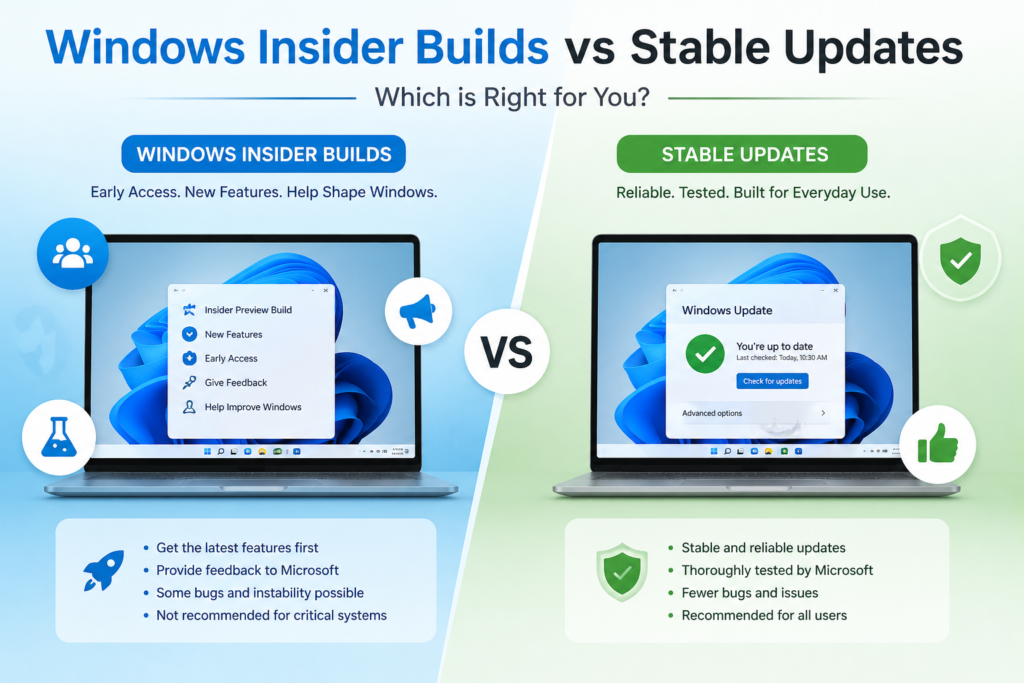
1. Insider Builds – Early preview versions released through the Windows Insider Program. These builds allow users to test new features before public release.
2. Stable Updates – Official public releases distributed by Microsoft for operating systems like Windows 11. These updates focus on security, reliability, and performance improvements.
In simple terms:
- Insider builds = Early access + Higher risk
- Stable updates = Reliability + Lower risk
What Are Windows Insider Builds?
Overview of the Windows Insider Program
The Windows Insider Program is a free initiative by Microsoft that allows users to preview upcoming Windows features before they are officially released.
Participants (called “Insiders”) receive preview builds through different channels such as Canary, Dev, Beta, and Release Preview. Each channel represents a different level of stability and feature readiness.
Insiders can also provide feedback directly to Microsoft, helping improve Windows before it reaches millions of users worldwide.
Purpose of Insider Testing
Insider testing serves several important purposes:
- Bug Detection: Identify system errors before public release
- Feature Testing: Evaluate new tools, UI changes, and performance tweaks
- Compatibility Checks: Test drivers and third-party applications
- User Feedback: Collect real-world opinions and improvement suggestions
This process helps Microsoft refine updates and reduce major issues in stable releases.
Who Should Join?
Windows Insider builds are best suited for:
- Developers testing app compatibility with upcoming Windows changes
- IT Professionals evaluating new enterprise features
- Tech Enthusiasts who enjoy experimenting with new tools
- Secondary/Test PC Users (not recommended for primary work devices)
It is generally not recommended for:
- Business-critical systems
- Users who rely on maximum stability
- Those unfamiliar with troubleshooting system issues
If your priority is reliability, stable updates are usually the better choice. But if you enjoy exploring new features before everyone else, Insider builds can be an exciting option.
Insider Channels Explained — Windows Insider Program
Canary Channel
- Audience: engineers and platform architects who want to see the very earliest ideas.
- Cadence: extremely frequent (often multiple builds per week).
- Stability: lowest — features are experimental and likely to break.
- Best for: people who want to validate low-level changes or try experimental APIs; not for daily drivers.
Dev Channel
- Audience: developers and power users who want early access to features still in active development.
- Cadence: frequent (weekly-ish builds).
- Stability: unstable but more polished than Canary; may contain significant bugs and rough edges.
- Best for: app developers testing compatibility, and for users comfortable troubleshooting.
Beta Channel
- Audience: early adopters who want preview features with higher reliability.
- Cadence: less frequent than Dev; builds are closer to what might ship.
- Stability: reasonably stable for power users; fewer breaking issues.
- Best for: those who want new features early but still need relative reliability.
Release Preview Channel
- Audience: users who want the next public update early with minimal risk.
- Cadence: infrequent; receives near-final builds and cumulative updates before public rollout.
- Stability: highest among Insider channels — these builds are essentially the final candidates.
- Best for: testers who want to validate updates on production-like systems without major disruptions.
Differences Between Channels (quick summary)
- Risk vs Reward: Canary > Dev > Beta > Release Preview (risk decreases left→right).
- Frequency: Canary is fastest, Release Preview slowest.
- Use case: low-level testing (Canary) → app compatibility (Dev) → early-but-reliable preview (Beta) → final validation (Release Preview).
Pros and Cons of Windows Insider Builds
Early Access to Features
- Pros: Try new UI changes, APIs, and system features before public release; helps developers prepare apps and tutorials.
- Cons: Features may be changed or removed before shipping, so work done against Insiders can become obsolete.
Testing & Feedback Opportunities
- Pros: Direct feedback loop to Microsoft; file bugs, upvote issues, and influence feature design. Great for shaping the platform.
- Cons: Reporting and triaging issues takes time; not every report results in immediate fixes.
Risks: Bugs, Instability & Compatibility Issues
- System crashes, driver incompatibilities, and broken third-party apps are common on Dev/Canary builds.
- Not recommended for primary workstations, production servers, or machines where uptime/data integrity is critical.
- Mitigation: use VMs, secondary PCs, or create full backups and system images before enrolling.
What Are Stable Updates? — Microsoft
Official Public Releases from Microsoft
Stable updates are the builds Microsoft ships to general users after development, testing, and validation. They prioritize security, reliability, and broad device compatibility.
Monthly Patch Tuesday Updates
- Microsoft issues security and quality fixes on “Patch Tuesday” (the second Tuesday of each month). These updates address vulnerabilities, fix bugs, and sometimes include minor reliability improvements. They’re tested extensively and intended for immediate deployment across most systems.
Feature Updates (e.g., Windows 11 Version Updates)
- Major feature updates (released less frequently) introduce new capabilities, UI overhauls, or significant platform changes. They undergo long testing cycles (including Insider feedback) and are rolled out gradually to minimize disruption.
- Feature updates are delivered as version upgrades (for example, a named Windows release) and are often paired with driver and firmware validation to ensure ecosystem compatibility.
Why Stable Updates Matter
- Designed for the broadest compatibility and minimum disruption.
- Recommended for business users, production machines, and anyone prioritizing uptime and data safety.
Types of Stable Updates
Stable updates — the ones most Windows users get automatically — come in a few distinct flavors:
Security Updates
Short, focused patches that fix vulnerabilities. Released as needed and bundled into Patch Tuesday (the second Tuesday of each month). Install quickly — they close security holes and are prioritized for all supported systems.
Cumulative Updates
Monthly rollups that contain previous quality fixes plus new patches. Because they’re cumulative, installing the latest one brings a device up to date without needing the older patches separately. These address reliability, bug fixes, and smaller security issues.
Feature Updates
Major version upgrades that add new capabilities, UI changes, or broad platform improvements (the kind that used to be called “version” or “OS” updates). They’re tested heavily and rolled out gradually to reduce risk. Feature updates often require more disk space and may include driver/firmware compatibility checks.
Optional Updates
Non-critical updates the user can choose to install: driver updates, preview fixes, or feature trial packages that aren’t pushed automatically. Useful for troubleshooting or getting a specific driver earlier, but optional updates can sometimes introduce issues, so review before installing.
Note: Stable updates are typically released and validated by Microsoft.
Pros and Cons of Stable Updates
Reliability & Security
- Pros: Thoroughly tested; lower risk of crashes or data loss. Ideal for production machines.
- Cons: Even well-tested updates can occasionally introduce regressions — but these are rarer than in Insider builds.
Better Driver Compatibility
- Pros: Microsoft coordinates driver/firmware validation with partners before broad rollout, reducing hardware breakage.
- Cons: Driver fixes may arrive slower than some hardware vendors push their own updates.
Slower Access to New Features
- Pros: You avoid half-baked features and breaking changes. Stability-first approach benefits most users.
- Cons: If you want the newest features ASAP, you’ll wait longer compared to Insider channels.
Key Differences: Insider vs Stable
Stability
- Insider: Experimental — higher chance of bugs and crashes.
- Stable: Production-focused — minimal surprises.
Security
- Insider: May receive security fixes sooner during development, but experimental features can introduce new vulnerabilities or regressions.
- Stable: Security updates are vetted and prioritized for wide deployment.
Feature Availability
- Insider: Early access to features (sometimes months ahead).
- Stable: Features arrive after testing and staged rollouts.
Performance Impact
- Insider: Performance may fluctuate as features are refined.
- Stable: Optimized for consistent performance across many devices.
Update Frequency
- Insider: Frequent (Canary/Dev) to moderate (Beta/Release Preview) — rapid iteration.
- Stable: Regular cadence (Patch Tuesday, monthly cumulative) plus periodic feature updates — slower, predictable.
Who Should Use Insider Builds? — Windows Insider Program
Developers & IT professionals
- Test app and driver compatibility with upcoming changes (APIs, UI shifts, security model updates).
- Validate deployment tooling, group policies, and update workflows before a wide rollout.
- Use automated test suites against preview builds to find regressions early.
Tech enthusiasts
- Enjoy early access to UI tweaks, experimental features, and platform improvements.
- Good fit if you like exploring and reporting bugs, and don’t mind frequent updates or occasional breakage.
Test environments — use these, not your main PC
- Run preview builds in virtual machines, secondary devices, or dedicated test rigs.
- Take snapshots or full system images so you can roll back quickly.
- Isolate work data from the test environment (separate accounts, disks, or profiles) to avoid data loss.
When to avoid Insider builds
- If you need strict uptime, rely on specific hardware drivers, or can’t tolerate configuration regressions — stick to a non-preview path.
Who Should Stick to Stable Updates? — Microsoft
Business users & IT-managed environments
- Prioritize security, compliance, and predictable behavior.
- Stable releases reduce support overhead and downtime; easier to certify hardware and line-of-business apps.
Students
- Need reliability for assignments, exams, and school apps — stable updates minimize surprises during deadlines.
Everyday home users
- For browsing, streaming, gaming, and home office tasks, stability and driver compatibility matter more than early features.
- Stable updates are safer for devices you depend on day-to-day.
How to Switch Between Insider and Stable — Windows Insider Program
Quick prerequisites (before you start)
- A Microsoft account (work/school accounts sometimes work differently).
- A device you can test on (recommended: VM, secondary PC, or spare partition).
- Backup of important files (see backup steps below).
Joining the Windows Insider Program (safe, step-by-step)
- Open Settings → Windows Update.
- Click Windows Insider Program (or “Get started”).
- Click Link an account and sign in with the Microsoft account you want to use.
- Choose an Insider channel (Canary / Dev / Beta / Release Preview) based on your tolerance for instability.
- Read and confirm diagnostic & privacy settings, then restart if prompted.
- After reboot, check Windows Update and install the latest preview build offered for that channel.
Leaving the Insider Program safely
- Go to Settings → Windows Update → Windows Insider Program.
- Choose: Stop getting preview builds (you’ll see options):
- Unenroll this device immediately — stops future Insider builds but does not downgrade the current build.
- Unenroll when the next major release of Windows becomes available — lets you stay on the current build until a stable public release is offered that’s equal to or newer.
- If you want to return to the latest public (stable) build immediately and your current Insider build is a higher/newer build than public, you usually must either wait for Microsoft to release a matching public build or perform a clean install of the stable Windows ISO.
- If you recently upgraded to an Insider build, Windows sometimes allows a rollback via Settings → System → Recovery → Go back (time-limited; typically around 10 days) — only available if Windows. Old and rollback files are still present.
Important notes about switching
- Unenrolling stops future preview updates but does not automatically downgrade your OS version.
- If you need the stable channel immediately and can’t roll back, plan for a clean install using a stable Windows ISO (save product keys, drivers, and backups beforehand).
- For managed devices (work/school), consult your IT admin — group policies or enrollment may block channel switching.
Backing Up Before Switching
Minimum backup checklist (do these before joining or switching):
- File backup: Copy Documents, Desktop, Downloads, Pictures (or use OneDrive/File History).
- System image: Create a full system image (built-in “Backup and Restore (Windows 7)” or third-party tool like Macrium Reflect) so you can restore the entire OS if needed.
- Create a recovery drive: Use “Create a recovery drive” (search in Start). Put it on a USB ≥16 GB.
- Create a restore point (works for minor changes).
- Export important settings: Browser bookmarks, mail profiles, and any VPN/credential exports.
- Export drivers (optional): Useful if you must reinstall a specific vendor driver later (
pnputilOr DISM can help. - Verify your backups: Try opening a few files from your backup to ensure they’re readable.
Common Myths About Insider Builds — Microsoft
Myth — “Insider builds are always unsafe.”
- Reality: Insider builds include experimental code and therefore carry a higher risk than stable releases, but the risk level depends on the channel. Release Preview and Beta are much closer to stable than Dev/Canary. With proper precautions (VMs, backups, test devices), many users run Insiders safely.
Myth — “Stable updates never have bugs.”
- Reality: Stable releases are tested more thoroughly and rolled out gradually, which reduces but does not eliminate bugs. Regressions still happen (rarely), which is why businesses test major feature updates in controlled pilots before wide deployment.
Short practical takeaways
- Use Release Preview if you want minimal risk but still want early access.
- Never put an Insider build on a device you can’t recover quickly from.
- Keep backups and a recovery plan — they’re the single best protection against update surprises.
Best Practices for Managing Updates (Windows & Microsoft)
Below are practical, ready-to-use practices you can include in a blog or follow yourself to keep systems healthy while getting updates.
Creating Restore Points
- Turn on System Protection: open System Properties → System Protection and enable protection for your system drive.
- Create a manual restore point before any major change: Create → give a meaningful name (e.g., “Pre-FeatureUpdate-2026-03-02”).
- Automate restore points for important machines (via Task Scheduler) if you frequently test builds.
- Remember: restore points help with configuration/registry rollbacks, but won’t restore removed user files — use a file backup for those.
Backing Up Important Files
- File-level backup (minimum): store Documents, Desktop, Pictures, and Downloads to OneDrive, another cloud provider, or an external disk. Test that files open from the backup.
- System image (recommended for test rigs / primary devices): Create a full image so you can restore the entire OS if an update bricks the system. Use built-in or third-party tools (e.g., Macrium Reflect).
- Create a recovery drive: make a USB recovery drive (≥16 GB) so you can boot and repair if Windows won’t start.
- Export app/data settings: export browser bookmarks, mail profiles, VPN configs, license keys, and other app-specific data you’d hate to lose.
- Versioned backups: keep at least two backup copies (one local, one offsite/cloud) and keep older copies for several weeks for safety.
- Verify backups regularly — a backup is worthless if it’s corrupt or missing files.
Monitoring System Performance & Stability
- Task Manager: quick checks for CPU, memory, disk, and GPU spikes after installing updates.
- Reliability Monitor: great for spotting recent crashes and update-related errors (type “reliability” in Start).
- Event Viewer: check System and Application logs for driver errors, services failing, or update-related warnings.
- Resource Monitor / Performance Monitor: deeper troubleshooting (identify leaking processes, disk/IO issues).
- Driver & firmware checks: verify device drivers and BIOS/UEFI firmware are current and validated for the update path you choose.
- Health checks after updates: run your usual workloads (apps, prints, virtualization, peripherals) and confirm critical devices and software behave normally.
- Record baseline metrics (CPU/memory/disk) before major updates so you can compare after updating.
Quick Recovery Actions (if an update breaks something)
- Try uninstalling the latest update from Update History.
- Use System Restore to roll back to a restore point.
- Boot into Safe Mode to troubleshoot driver/app conflicts.
- If on a preview build and you must return to stable, be prepared to clean-install the stable OS if rollback options are not available.
- For managed environments, coordinate with IT to apply hotfixes or driver rollbacks centrally.
Operational Best Practices (process & policy)
- Test first: run updates on test devices or VMs before rolling them out to production.
- Staged rollout: deploy updates to a small pilot group, monitor, then expand if no issues.
- Automate backups/alerts: schedule automated backups and use monitoring alerts to detect regressions quickly.
- Set update policies: for business devices, use update rings or group policies to control cadence; for home users, use “Active hours” and Pause When Needed.
- Document changes: keep a short change log (what was installed, when, and on which machine) to speed troubleshooting.
Conclusion — Balancing Innovation and Stability
- Balance: Innovation (preview builds) gives early feature access and prep time for developers, while stability (public updates) minimizes risk for everyday and business users.
- Choose the right path based on the device’s role: test/dev devices → early builds; primary/work devices → stable channel. If you’re curious but cautious, prefer a Release Preview or pilot ring on non-critical machines.
- Never skip backups — they’re the single most effective insurance against update problems.
- Final rule of thumb: if uptime/data integrity matters more than new features, prioritize stability; if learning and preparing for new features matters more, prioritize testing — but always isolate testing from production.